
ConNECTING TO BITGET EXCHANGE,
activating subaccounts
We recommend registering an account on the Bitget exchange using the Moonbot referral link:
For all accounts registered through this link, an automatic cashback of 20% on spot and futures trading applies.
After activating the PRO version using the Moonbot referral link, the following bonuses will be available to you:
- BGB auto-buy option;
- MoonHook strategy;
- Price emulation on the chart using the Pencil tool;
- Chart monitoring module in separate windows;
- Moon Kernel module — client-kernel mode for faster manual trading.
The Moonbot terminal for Bitget supports both spot and futures markets.
When using the Moonbot terminal for Bitget on a dedicated server, it is recommended to select the “Japan” (Tokyo) location for better ping.
Activation of subaccounts is performed through the Moon Credits window (instructions are provided below), and this requires 500 Moon Credits — for activating each subsequent subaccount. Moon Credits are available only to users of the PRO version of Moonbot.
Instructions for Creating API Keys in a Bitget Exchange Account
After logging into your Bitget exchange account and completing verification:
1) Open the futures trading chart in the web interface Binance Futures → USDT-M Futures;
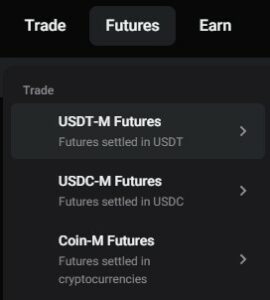
2) Follow the yellow prompts on the screen and complete the test for access to futures trading.
You also need to transfer a small amount to the futures account in your Bitget exchange account;
3) Go to Account → API Keys and click the Create API Key button;
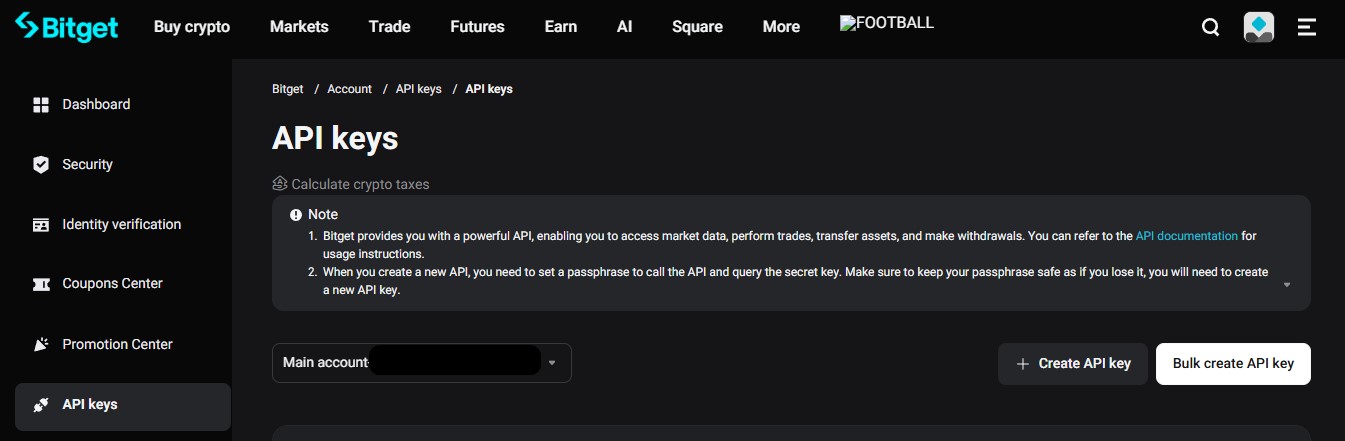
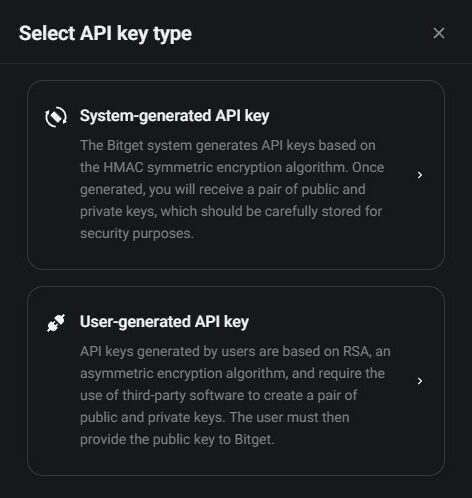
4) In the Select API Key Type window, choose System-generated API Key to create HMAC keys, or User-generated API Keys to create RSA keys;
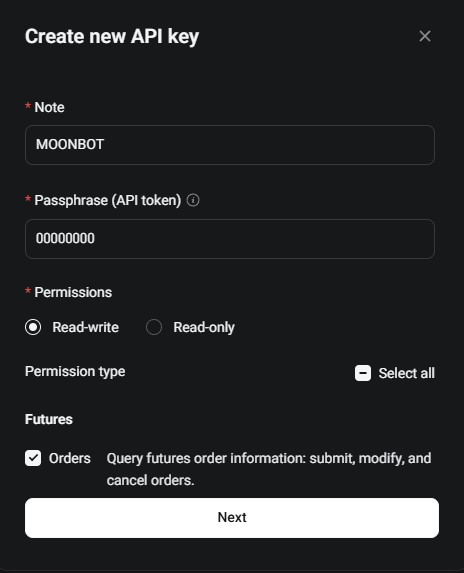
5) In the Create New API Key window:
- In the Notes field, enter the name of the API keys, for example, MOONBOT;
- In the Passphrase field, enter 00000000 (eight zeros); this password is not used by the Moonbot terminal and is only required to fill out the form when creating API keys on the exchange side;
- Select the Read-Write option;
- In the Futures section, enable Orders and Funds checkboxes;
- In the Spot section, enable Trading;
- In the Bind IP Address field (optional, each key can be bound to up to 30 IP addresses), you can specify a comma-separated list of whitelisted IP addresses allowed for trading;
- Click the Next button.
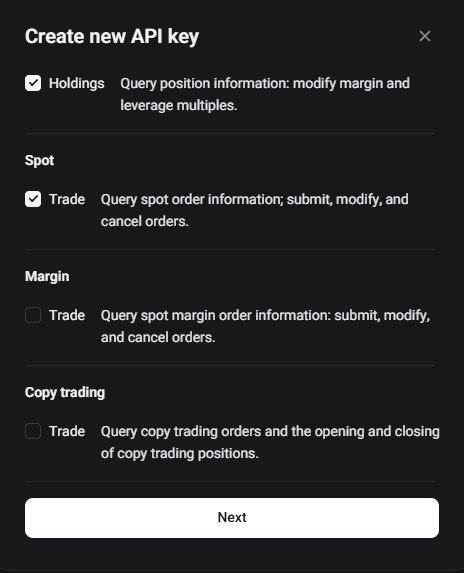
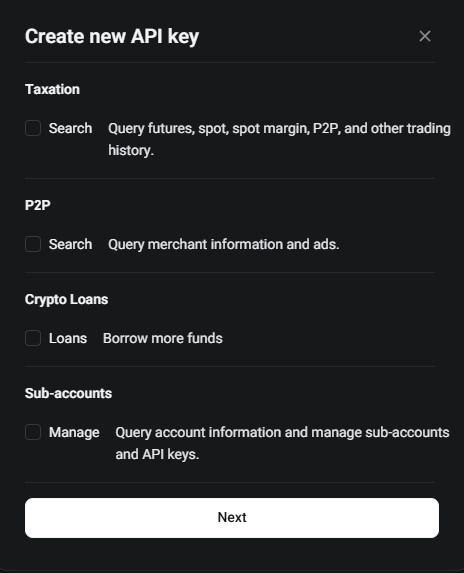
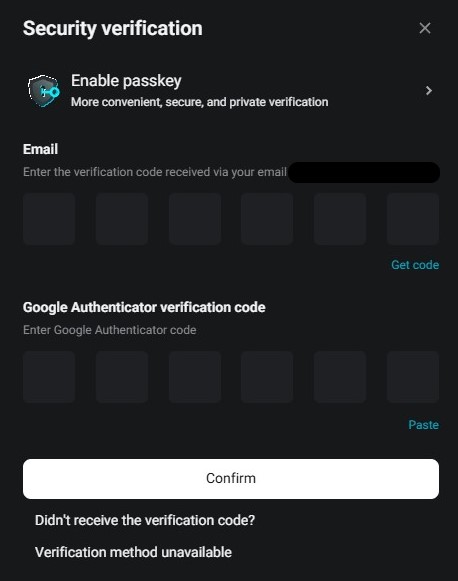
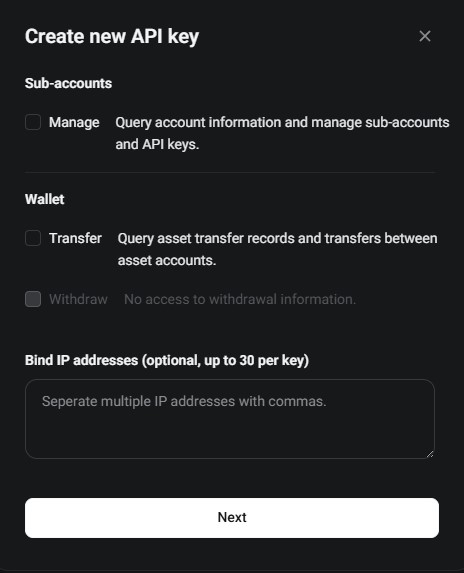
6) In the Security Verification window, complete the required verification procedures, enter the code sent to your email, and the code from Google Authenticator or a similar verification app to confirm the creation of API keys.
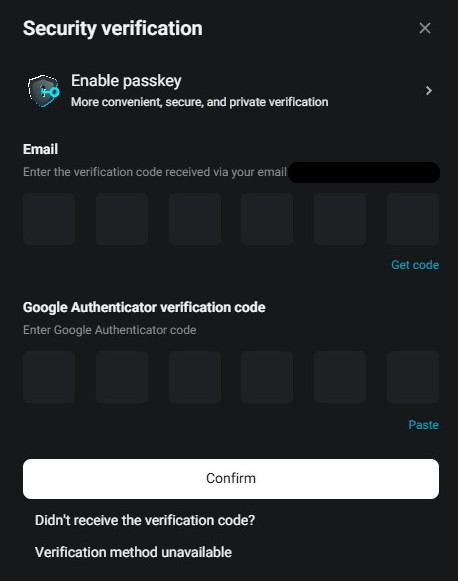
After completing these steps, the API keys will be successfully created.
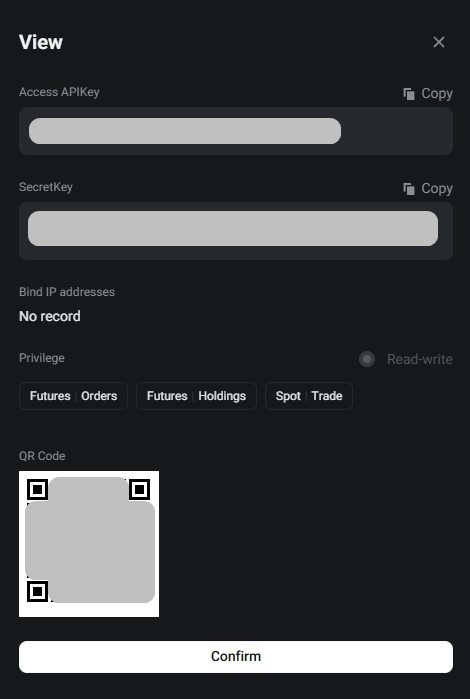
Important!
Save the API Key and Secret Key in a text file on a USB drive or write them down on paper — these keys will be required to register them in the Moonbot terminal (on the Settings → Login tab).
How to Activate API Keys in the Terminal for the Bitget Exchange
- Create API keys on the Bitget exchange website for the main account or a subaccount;
- Copy the folder with your main PRO terminal for another exchange into a new folder and launch the terminal;
- Go to Settings → Login, in the Exchange field select Bitget Spot or Bitget Futures and click Apply;
- In Settings → Login, register the API keys from your main account or subaccount;
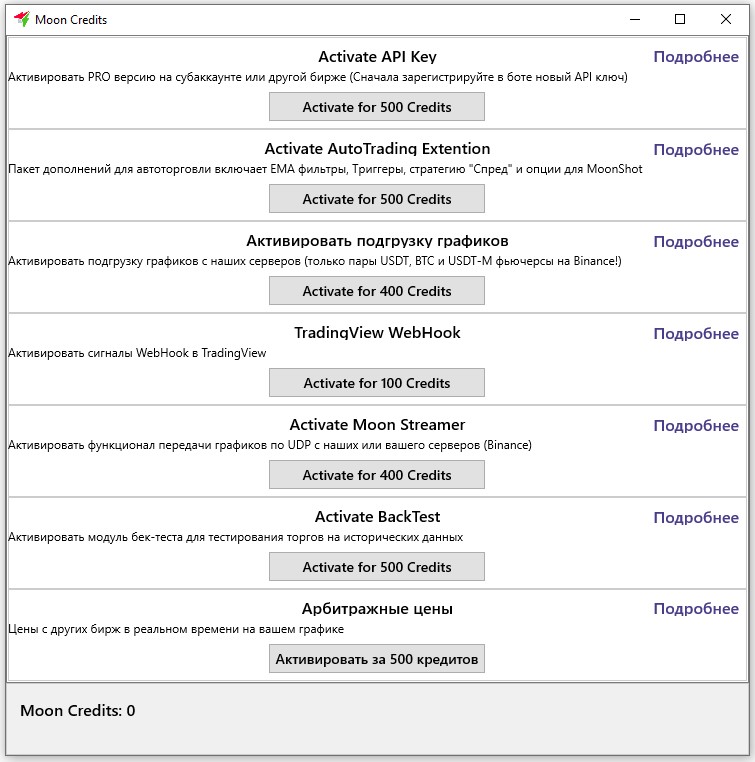
- In the lower-right corner of the main window of the Moonbot terminal, click the PRO version label to open the Moon Credits window with activation of paid modules (see the figure below);
- In the Moon Credits window, the lower section displays the balance of your Moon Credits; activating the main account or one subaccount requires 500 Moon Credits; if the balance is sufficient, in the Activate API Key block click the Activate for 500 Credits button — the API keys will be activated in this terminal;
- If the message Wrong account is displayed, this means that the account was not registered via the referral link specified above;
- If you need to activate additional subaccounts of the same exchange, repeat the procedure the required number of times.
Specific Features When Working with the Bitget Exchange
From version 7.70 onwards, the Moonbot terminal uses a new implementation for the Bitget v3 exchange.
To connect and ensure proper operation of the terminal with the Bitget exchange, consider the following features:
1. The Moonbot terminal for the Bitget exchange with API v3 now only works with Unified Trading Account (UTA).
Here’s what to do:
- Make sure you are using the Moonbot terminal with version 7.70 or a newer version.
- Close the Moonbot terminal.
- Log in to your Bitget exchange account and switch from a classic account to Unified Trading Account (UTA). Instructions on the Bitget exchange: How to Upgrade to Unified Trading Account? >>>
- Launch the Moonbot terminal in administrator mode.
2. If the terminal displays the message "Cannot read Bitget account/settings" when connecting, this means the API key lacks the "UTA management: read" permission.
3. The Moonbot terminal for the Bitget exchange with API v3 exchange supports full cross/isolated margin functionality, and this now applies to the ENTIRE account, not just individual pairs. Any margin switch in the terminal will switch the entire account to that margin type, but only when there are no open positions or pending orders on the account.
4. Do not mix margin modes. The terminal does NOT track positions opened in a different margin mode outside the terminal (e.g. opened via the website/app, using a different terminal, or where a second terminal with different margin settings is running on the same account): it only manages positions in its own mode, whilst reporting external positions via an alert in the log as "SECOND same-direction position", which must be closed manually. In other words, if you have enabled cross or isolated margin mode, you MUST NOT open positions in other applications using a different margin mode.
5. The Moonbot terminal for the Bitget exchange with API v3 supports Hedge mode, which also applies to the entire account. You should only switch to Hedge mode on an empty account (with no open orders).
6. The Moonbot terminal for the Bitget exchange with API v3 recognises leverage and position limits immediately; they are retrieved in a single snapshot, so there is no longer any need to wait for this data to load, as was the case with Bitget using API v2. On markets where leverage has never been configured, the terminal automatically sets the leverage to FixLev (subject to the exchange’s maximum limit) on the first occasion.
In the Moonbot terminal for the Bitget exchange using API v3, the balance is updated via WS almost instantly, and the delays experienced with Bitget’s API v2 no longer occur.
7. In the Moonbot terminal for the Bitget exchange using API v3, the balance is updated via WS almost instantly, and the delays experienced with Bitget’s API v2 no longer occur.
8. When trading on the spot market, fees are paid using the special BGB token; the discount is applied automatically by the terminal; please also check the discount status on the page: https://www.bitget.com/fee; Furthermore, for Bitget Spot, go to Settings → Advanced → Engine settings and enable "Auto buy BNB"; the interface may display the name "BNB", but the system will actually be purchasing BGB automatically;
9. Liquidations are recognised and included in reports; in the event of a partial liquidation or ADL, the position remains open - the terminal will recalculate the sell order and, for a few seconds, will send it strictly to reduce the position (reduceOnly).
10. If the account mode is changed on the website whilst the terminal is running, the exchange will reject the next order; the terminal will automatically re-read the settings and notify you of this.
11. Note that there are no limits on the size of a single order; however, limits on the maximum position size do apply and are loaded together with leverage;
12. Follow API limits: 6000 requests per minute for all operations and 10 orders per second; protection against temporary blocking is not possible due to the short reset time of the limit;
13. The terminal uses some undocumented API functions, including an increased number of order book levels and subscription to all trades; the number of levels may be reduced if the exchange disables this functionality;
14. Funding Time via API is transmitted by a separate request for each trading pair; to avoid sending requests for all 700+ markets, Funding Time is requested for the BTC-USDT pair; if Funding Time differs on another market, the terminal will not display this in the current implementation;
15. For correct operation of balances on futures, enable multi-assets mode: open Menu → Assets, in the Assets window click the MultiAssets ON button;
16. Chart loading in the terminal is currently supported only for the futures market;
17. Bitget exchange servers are located in the following zones:
AWS Tokyo ap-northeast-1a (apne1-az4)
AWS Tokyo ap-northeast-1c (apne1-az1);
18. Iceberg order mode is not supported.