
MOON KERNEL
The ”core" in the Moonbot is a technology for separating exchange operations into an UPU and an interface in the user's terminal.
The technology is available in the PRO version as part of the Munbonus (bonus package for participating in the referral program)
Terms:
- The “Core” or “Server” is a Moonbot on a VPS. (recommendations for setting up a VPS are standard: 1 bot per 1 VPS, the “menu - System Settings - VDS mode" checkmark is enabled)
- A “client" is a moonbot on your home computer or laptop that is connected to the core.
It can work in two modes:
- "Full Proxy": everything works on the VPS, as far as the exchange is concerned, on the user's terminal there is only a picture. In this mode, the client does not interact with the exchange at all. You do not need to add an IP whitelist to the API keys that are inserted in the client.
- Orders only: orders are processed on the VPS, everything else is in the terminal (charts, leverage, market deltas).
The settings window is opened by clicking on the API indicator (the green circle in the lower left part of the work window), the inscription “Moon Kernel”, or by clicking on the mailbox of the Moonbot status (later replaced by the MoonKernel button)
MoonKernel Settings Window
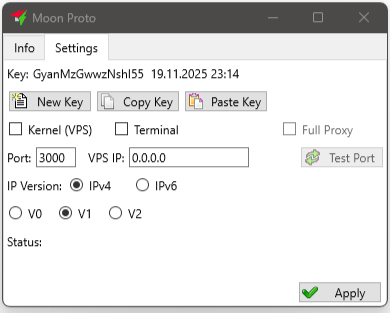
1) Enable the Kernel checkmark(VPS) on the VPS. Select and open a UDP port in the firewall. If necessary, open a port in the VPS provider's PC (for example, Amazon requires this). Click Apply. To check that you have opened the port, use the Test Port button. (verification is carried out by pinging our server; if you have opened the port, but made a whitelist of IP addresses from which access is allowed, the verification will not work - it's not a big deal, in this case you can check by connecting the client to the kernel).
Check the box whether you are using IPv4 or IPv6. It is advisable to have an IPv6 provider - it speeds up the work.
2) Click “New Key” and then “Copy Key” - this will copy your server access key to the clipboard. The key can be saved to notepad or immediately inserted into the terminal on the local PC.
3) Check the box "Terminal" in the terminal. Specify the server's IP and port. Press Paste Key to copy the key. Click Apply.
If everything is done correctly, you will see the green label Connected.
If you haven't seen it, there are two options.:
1) An error in following the instructions.
2) Traffic blocking. In this case, you should check the connection with options V1 and V2 in turn, as follows
Tick V1 first on the server; change the port; click Apply on the server.
Then do the same on the terminal.
If it didn't help, then repeat with jackdaw V2, and also change the port.
How to check:
- Make sure that the keys are the same (the beginning of the key is visible in the settings window - this is a useless part of the key, you don't have to cover it up, it's only needed for reconciliation.
- In the same settings window, open the Info tab. If there is a connection, then the number R will grow on the server: this is the counter of received packets.
- Symptoms of traffic blocking: R increases slightly on the first connection attempt, then it does not change. In this case, try options V1, V2, port change
Nuances:
- It is not recommended to use a VPN and proxy (Full Proxy mode should be sufficient).
- If you do use third-party proxies, then some, such as Proxycap, may experience brief disconnections (due to loss of connection to this proxy). The bot restores the connection itself within a few seconds.
- When updating the client, the kernel is updated automatically (including when upgrading to test versions).
Ping Displays
when the kernel is running:
- the first digit is the ping to the core (in 1 direction)
- the second digit is the ping of orders from the UPU itself (to the exchange)
Working with strategies
It is not recommended to have more than 100 strategies in one bot.
In both modes (with or without the Full Proxy jackdaw), the strategies work as follows:
on a VPS with the kernel: Only strategies with AutoBuy (and moonshots) or strategies with the RunDetectOnKernel parameter;
on the terminal: only strategies without AutoBuy (i.e. detectors).
Exception: manual hooks are also handled in the kernel.
The bottom line: since all operations with orders are performed in the core, the strategies that should be traded also work in the core. For some settings using triggers, trading strategies need to be triggered by detectors. For this, the RunDetectOnKernel parameter is needed to organize a bundle of the detector and the trading strategy in the core.
Detection strategies for manual trading are needed in the terminal to give a signal with the opening of the chart and the alert button. Therefore, detectors without AutoBuy and without the RunDetectOnKernel option work in the terminal.
The “source of truth” in the settings is the kernel (VPS). If you enable the strategy from one terminal, it will be enabled on the others as well (when launching terminals from different locations, for example, or when launching two terminals at once). If you make edits to the strategy on the terminal, the edits are transferred to the core; and from there to other terminals.