Installing Moonbot on a Local Computer
Creation of API keys on the exchange Binance
After logging into your account and completing verification, open the futures trading chart in the Binance web interface. Follow the yellow on-screen prompts and pass the test required to access futures trading. You will also need to transfer a small amount of funds to the futures account in your Binance account.
Next, go to Account → API Management.
Click the Create API button.
In the Choose API Key Type window, click the top option — System generated to create HMAC keys, or Self-generated to create RSA keys. Then click Next.
In the Create API window, in the Label API key to proceed field, enter a name for the API key, for example: "MoonBot-02-04-2025", and click Next.
In the Security Verification Requirements window, complete the required verification steps and enter the code from the Authenticator App and the code sent to your Email.
Once all steps are completed, the API keys will be successfully created.
⚠ Important! Save the API Key and Secret Key in a text file on a USB drive or write them down on paper — you will need them to register the keys in the Moonbot terminal (Settings → Login).
Then click the Edit restrictions button.
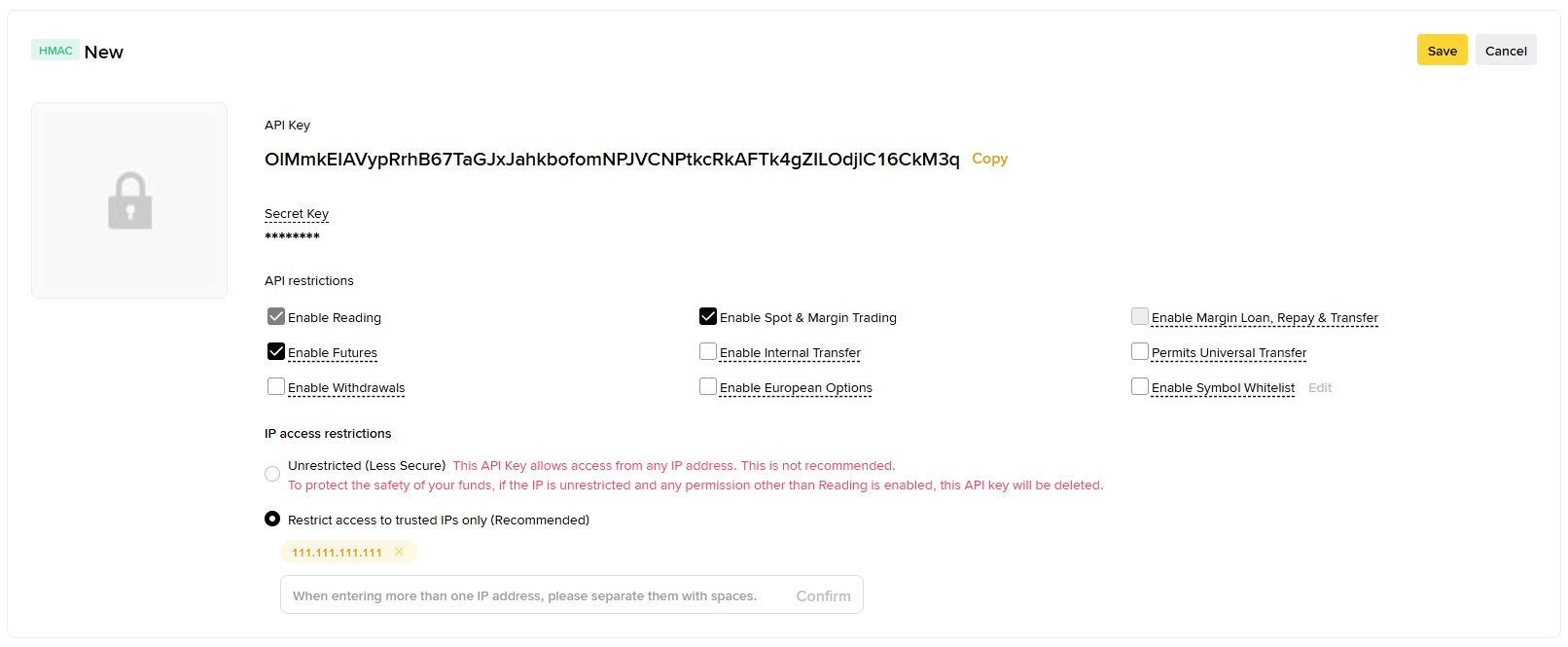
If you're currently using the FREE version, you will only be able to trade on the spot market only. However, it's recommended to create universal API keys for both spot and futures trading — this will allow you to use the same keys in the PRO version later, without needing to configure them again. To create universal API keys, check the boxes for Enable Futures and Enable Spot & Margin Trading.
For security reasons, make sure the checkbox for Enable Withdrawals is not selected, as Moonbot does not support withdrawal functionality, and it should remain disabled in the API keys.
⚠ Important! Also for security, it is recommended to choose the option Restrict access to trusted IPs only (Recommended) without an API key expiration date, and enter the IP address of your computer or server where the Moonbot terminal using these keys is installed. You can find your IP address using any online IP lookup service, such as 🔗https://2ip.io/.
If you leave the option Unrestricted (Less Secure) enabled, the API keys will expire after 90 days, and you will need to manually extend or recreate them. This setting also allows access from any IP address, which significantly reduces security.
When you launch Moonbot, the log window displays the number of days until the API keys expire. Seven days before expiration, a red warning message showing the number of remaining days will appear in the main terminal window in the BNB balance info area.
After completing all API key settings, click Save.
The Security Verification Requirements window will appear again — enter the code from the Authenticator App and the code from your email. After this, the changes to your API keys will be saved successfully.