Main Terminal Window with Advanced Settings
"M" Button (Use multi orders YES/NO)
When the M button is enabled,multi orders mode is activated, allowing you to place multiple individual orders or create order grids for a single coin. In this mode, order management switches to the settings from the M button menu.
The multi orders feature is available in the PRO version when the MoonScalper module is connected.
Multi orders can be placed manually using main settings, through the Manual strategy, or via auto strategies. Once placed, they are managed independently — either by their strategy settings or manually by the trader.
Multi orders help optimize trading. For example, you can place a grid of orders with a specific step and balance to build a position at a better average price. This is useful if you want to start with a small order and then add to the position as the price drops, or scale up as the price rises. Positions can be closed in parts or combined into a single order and managed as one.
⚠️ Attention! Mass placement or movement of orders may cause temporary blocks from the exchange. Each exchange has its own API limits, which must be taken into account.
Switching between multi-order and single-order modes during active trading is not recommended, as the logic of order management differs between these modes.
Terminal behavior after exiting multi-order mode
If the same click combinations are assigned to multiple actions, the terminal will respond automatically in the following order:
-
New orders will not be placed if there is at least one active Buy order
-
If there is at least one Sell order, the click will move it; if there are several, the last placed Sell order is moved
-
If there are no Sell orders but active Buy orders exist, the last placed Buy order is moved
-
If you had two Buy orders, clicked in the red zone and bought, generating a Sell order — return to step 1.
Settings Menu for the “M” Button
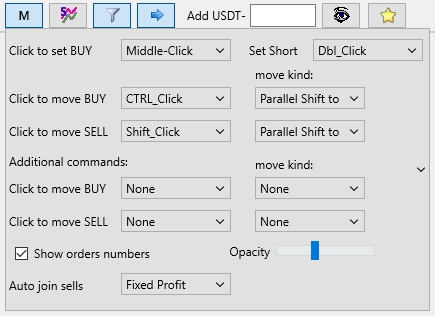
Right-clicking the M button opens its settings menu, where you can assign various key combinations for placing and moving orders, along with other options.
It is recommended to set different combinations for placing and moving orders to avoid accidental actions.
-
Click to set BUY – menu to select the key combination for placing a new Buy order in long
-
Set Short – menu to select the combination for placing a new Buy order in short
-
Click to move BUY – menu to select the combination for moving a Buy order
-
Click to move SELL – menu to select the combination for moving a Sell order.
Key Combination Selection for Order Placement
-
None – no key combination assigned
-
Dbl_Click – double left mouse click
-
CTRL_Click – double click while holding CTRL
-
Shift_Click – double click while holding Shift
-
Alt_Click – double click while holding Alt
-
Middle-Click – single click with the middle mouse button (wheel)
-
CTR-_Middle – middle click while holding CTRL
-
Shif-_Middle – middle click while holding Shift
-
Alt-Middle – middle click while holding Alt.
Actions for moving orders (move kind)
-
None – do nothing
-
Parallel Shift to cursor – move the entire order grid to the cursor while preserving the spacing between orders
-
Top Vol first – move the order with the highest volume
-
Low Vol first – move the order with the lowest volume
-
Top Profit first – move the order with the highest profit
-
All to 1 price – move all orders to the cursor’s price
-
Last Set – move the last placed order
-
Last Moved – move the last modified order on the exchange.
Additional commands
Select an additional click action for moving orders using the middle mouse button.
Show orders numbers
Enable display of sequence numbers on Buy lines, buy traces and Sell lines for easier analysis.
Opacity
Set the transparency of drawn orders so they don’t obstruct the chart view.
Experimental setting: Allow 2 orders in solo mode
This option is hidden by default, and we do not recommend enabling it. Stick to a consistent trading approach: either always use multi-order mode or always use solo mode.
By default, if you have two active orders on one coin, you cannot exit multi-order mode. This option overrides that behavior and allows you to place an order in multi-mode, then exit it and continue scalping with another order on the same coin.
In multi-order mode, Sellorders can only be managed by dragging.
If you truly need this option, type the code CombineMultiSolo into the coin input field and restart the terminal.
⚠️ It is strongly recommended NOT TO ENABLE this checkbox and to stick to one working mode: either always use multi-order mode or always work without it. Otherwise, it can lead to confusion and unintended actions if you forget that the option is enabled.
Auto join sells
This feature automatically combines all Sell orders into a single one with an averaged buy price. It works only in manual trading mode.
Auto-merge options:
-
None — auto-joining is disabled
-
Fixed Price — after an additional buy, the new Sell order will be placed at the same price as the first one (in satoshi)
-
Fixed Profit — after an additional buy, the new Sell order will be placed with the same profit percentage as the first one.
It is recommended to test different auto-merge options directly on the chart for better visual understanding. Start by selecting the first setting, place two real small Buy orders and observe the result. Then switch to the second setting, repeat the actions and compare the difference.
In multi-order mode, if identical click combinations are assigned to different order management actions, Sell orders always take priority. If a Sell order is already placed on the coin, the click will move it. If no Sell order exists, the click will apply to the Buy order instead.
When multi-order mode is turned off and both Sell and Buy orders are active, the terminal switches to solo mode, allowing you to control the last placed Buy order using standard solo order logic.
If multiple Buy orders were placed earlier, dragging any of them will set that specific order as the one controlled by further actions (like double-clicking).
If only Sell orders remain after exiting multi-mode, further control actions (such as double-clicks) will automatically apply to the last placed or moved Sell order.
Pending Order Placement Specifics
The setting for placing pending orders is configured under Settings → User Interface in the Order Control menu with the lowest priority.
For example, if ALT + Double Click is assigned to both moving a Sell order and placing a pending order, then:
-
If a Sellorder already exists, the click will move it
-
If there is no Sell order, a pending order will be placed instead..
💡Recommendation: to avoid confusion, avoid assigning the same key combinations for placing and moving different types of orders.
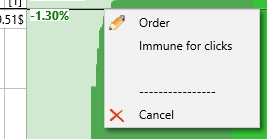
Right-clicking a BUY order opens a menu with three options:
-
Order — opens a separate window for editing the Buy order parameters
-
Immune for clicks — makes the Buy order immune to clicks; it will not respond to hotkeys or click-based actions
-
Cancel — cancels the Buy order; funds will return to your exchange account balance.
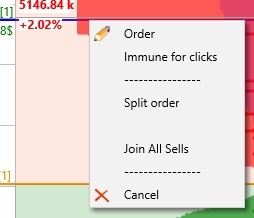
Right-clicking a SELL order opens a menu with five options:
-
Order — opens a separate window for editing the Sell order parameters
-
Cancel — cancels the Buy order; funds will return to your exchange account balance.
-
Immune for clicks — makes the Sell order immune to click-based actions and prevents it from being merged with other orders
1) Order — opens a separate window for editing the Sell order parameters
2) Immune for clicks — makes the Sell order immune to click-based actions and prevents it from being merged with other orders
3) Split order — splits the Sell order into three equal parts. This can also be done using a hotkey assigned in Settings → Hotkeys under Split Order.
If you want to split a Sell order into a custom number of parts (up to 20), use the hotkey configured in the Split to XX (click to set) field under Settings → Hotkeys. To set the desired number of parts, click the Split to XX (click to set) label, enter the value (up to 20) in the input field that appears, then press Enter.
If the total order amount is less than three times the coin’s minimum lot size, the split will not occur. In this case, the log will display a message such as: "Sorry, the volume of this order is too small. For BTC, the minimum volume is $11"(example for BTC). In rare cases, the Sell order may be fully canceled, and the coins will be returned to your balance. You can re-open the position via Menu → Assets.
Hotkeys for splitting orders only work on coins whose chart is displayed in full-screen mode.
⚠️ Attention! Emulator orders cannot be split.
After splitting, you can manually drag each order to the desired price level or use the Sells to rectangle hotkey (default: CTRL+S) configured in Settings → Hotkeys. To do it hold CTRL, stretch a rectangle on the chart, and define the range within which all Sell orders will be evenly distributed. This functionality allows you to quickly distribute Sell orders in steps anywhere on the chart — below a large limit order, above it, with tight or wide spacing — without wasting time manually placing orders at equal intervals. This method helps you sell a position in parts, remain less noticeable on low-volume coins and place several smaller orders in a uniform grid instead of one large order.
Useful features of the Sell order distribution function:
-
Clicking a single point on the chart (no rectangle stretch) will group all Sell orders at one price (similar to All to 1 price function)
-
Stretching a rectangle inside the green Order Book will move all Sell orders into the green book for fast market execution (similar to Panic Sell function).
4) Join All Sells — merges all Sell orders for the current coin into one. You can also perform this merge using a hotkey configured in the Join Sells field under Settings → Hotkeys.
⚠️ Attention! Emulator orders cannot be merged.
⚠️ Attention! When Sell orders are merged, the new combined order will inherit all key settings (stop loss, trailing, etc.) from either the manual trading configuration or the active manual strategy if one is enabled. This means a stop loss might be applied even if none was set on the original orders. If orders from different strategies are merged, settings will be taken from the first matching strategy key in the list. Manual orders may also merge with strategy orders, and the resulting order will use the settings from the first listed strategy.
5) Cancel — cancels the Sell order. All purchased coins will be returned to your exchange balance. To reopen the position, go to Menu → Assets.