“Settings → Advanced” Tab
Hang Control
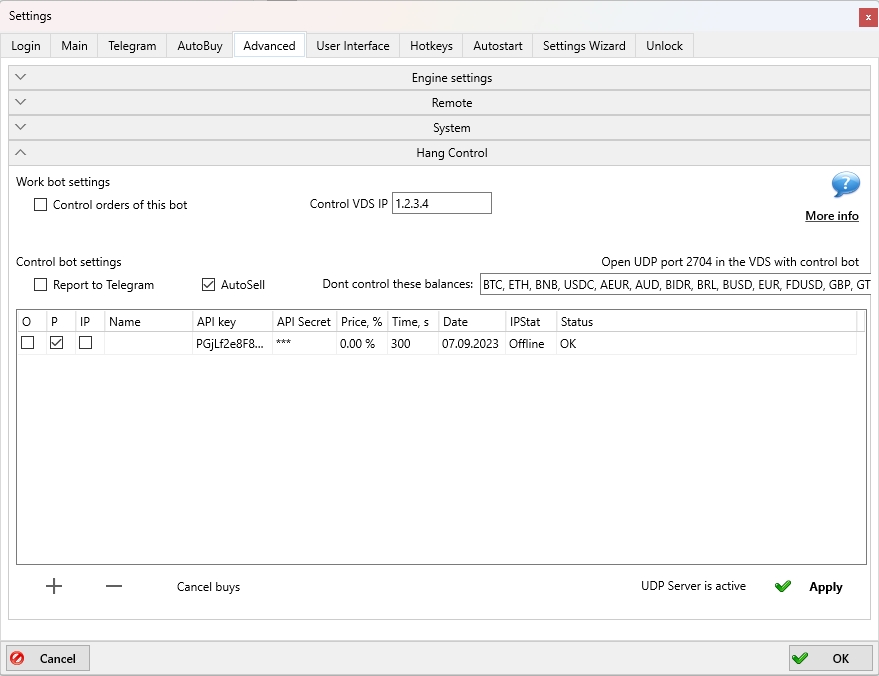
The Hang Control functionality is available only in the PRO version of the MoonBot terminal.
There are various scenarios in which unwanted or stuck orders may appear on the exchange:
-
Network failures
-
VPS provider maintenance
-
Software bugs in the terminal or on the exchange side
-
Manual intervention during trading — e.g., closing a position via the Balances section or the exchange’s mobile app.
For manual trading, it is sufficient to enable the checkbox Ignore Replacing Bug on the Settings → Advanced → Engine Settings tab. In this case, if a problem occurs, you’ll be able to monitor orders and take manual action to close them.
For automated trading, especially when running on a VDS server and a network failure occurs, you may lose control over orders and positions. To solve this, a dedicated order and stuck position control system has been developed, based on configuring monitoring and working terminals.
⚠️ Important! Monitoring and working terminals must be located in different regions and/or hosted by different providers!
-
On the working terminal in the Work bot settings section:
-
Enable the checkbox Control orders of this bot
-
Optionally, in the Control VDS IP field, specify the IP address of the monitoring terminal server to allow ping availability checks.
-
On the monitoring terminal in the Control bot settings section:
-
Open the UDP port displayed in the message Open UDP port 2704 on VDS with monitoring bot (example: port 2704). Spot and various futures markets use different ports — these are used for ping monitoring.
-
Report to Telegram — if checked, the monitoring terminal will send status messages to Telegram
-
AutoSell — allows automatic selling of stuck positions
-
Dont control these balances — a comma-separated blacklist of tokens whose balances should be ignored by the monitoring terminal.
For example, if you hold BNB for fee payments, add it here so it's not sold. Do the same for other tokens you're accumulating. -
Click + (in light theme) or Add (in dark theme) to add new rows to the API key table.
Fill in each row with the Name, API Key, and API Secret of a working terminal and check the monitoring options as needed.
⚠️ Important!
API keys must come from different exchange accounts! If you enter two rows with keys from the same account, the terminal won't know which account to control and will mark both rows with duplicate in the Status column.If the API keys are incorrect, lack permissions, or are missing an IP whitelist, the Status column will show an error.
Checkbox Descriptions in the Monitoring Table
-
O — controls orders based on time active (column: Time, sec.) and distance from price (column: Price, %). The order will be canceled when it exceeds the time or price threshold.
-
P — controls positions. The monitoring terminal will detect stuck positions without take-profits, report them in Telegram, and if AutoSell is enabled, sell them using a special manual strategy called SafeGuard, automatically created on first use (you can later edit it).
-
IP — controls availability by ping. If the working terminal has the correct IP of the monitoring terminal and ping fails for 10 seconds, opening orders will be canceled. (Take-profits are not affected — the algorithm does not cancel take-profits.)
Description of the buttons below the table
-
+ button (in light themes) or Add button (in dark themes) to add new rows to the API key table.
-
– button (in light themes) or Del button (in dark themes) — removes a selected row
-
Cancel buys button cancels all Buy orders across all terminals (does not affect Sell orders)
-
Apply button saves settings, logs the key addition date, and determines IP status (On / Offline) and API key status (OK, duplicate, Error, etc.)
Number of monitoring terminals:
-
for the spot market: 1 terminal for all accounts on the Binance spot market
-
for the futures market: 1 terminal per market (it will cancel orders and check for stuck positions only on the specific market it’s assigned to).
Total number of monitoring terminals required
-
1 monitoring terminal for Binance spot market
-
1 monitoring terminal for Binance USDT futures
-
1 monitoring terminal for Binance quarterly futures
-
1 monitoring terminal for HTX spot
-
1 monitoring terminal for Bybit spot
-
1 monitoring terminal for Bybit futures
-
1 monitoring terminal for Gate spot
-
1 monitoring terminal for Gate futures
-
1 monitoring terminal for Bitget spot
-
1 monitoring terminal for Bitget futures.
Each monitoring terminal should manage no more than 20–30 API keys. More than 30 may lead to API bans, especially if the terminal tries to cancel all orders at once. If you have more than 30 accounts, split monitoring terminals across different servers, as API load is counted by server IP. Ensure that each monitoring terminal manages no more than 30 API keys.