“Settings → Advanced” Tab
Engine settings
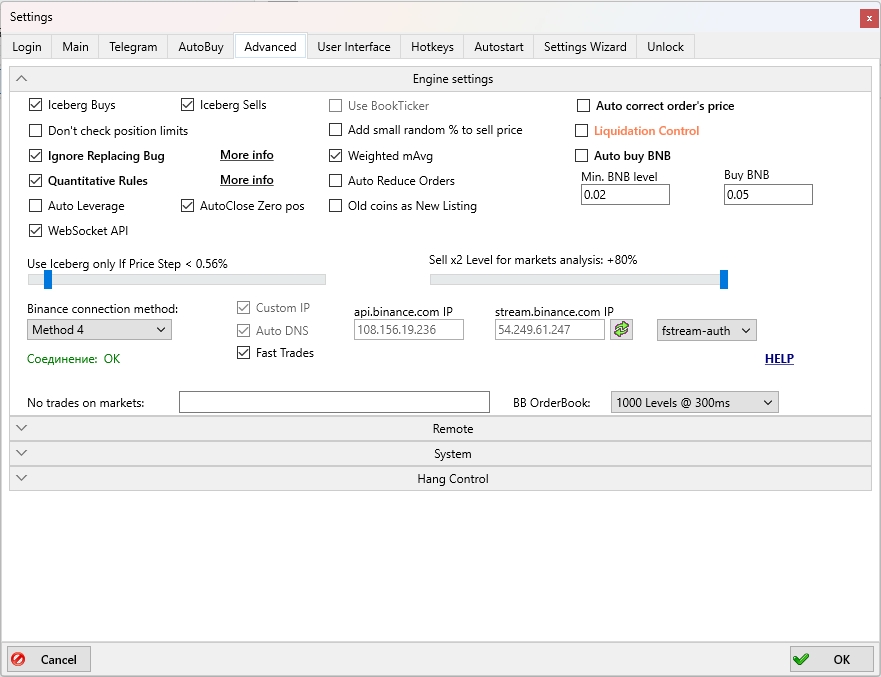
Iceberg Buys
When this checkbox is enabled, Iceberg mode for Buy orders is activated. In this mode, the Buy order will not be fully visible in the order book — initially only 10% will appear. After these 10% are filled, the exchange will automatically place the next 10% of the Buy order, and so on, until the entire order is filled. This mode helps hide the total volume of the Buy order from other market participants and remain less noticeable in the order book.
Iceberg Sells
When this checkbox is enabled, Iceberg mode for Sell orders is activated. In this mode, the Sell order will not be fully visible in the order book — initially only 10% will appear. After these 10% are sold, the exchange will automatically place the next 10% of the Sell order, and so on, until the entire order is sold. This mode helps hide the total volume of the Sell order from other market participants and remain less noticeable in the order book.
Use BookTicker (*disabled)
Displays real-time BID and ASK prices on the chart. Used in strategies such as MoonShot for more precise repositioning of orders based on BID and ASK prices.
⚠️ Enabling this option may increase CPU usage, especially on low-power 1–2-core VPS servers.
Auto correct order’s price
Automatically adjusts the order price if it is being placed too high or too low.
Don’t check position limits (*futures only)
Not recommended to enable. Allows bypassing the maximum total order value restriction on a coin — for example, with a 5000 USDT limit, you could place a long Buy order for 5000 USDT and also a short Sell order for 5000 USDT simultaneously.
Add small random % to sell price
When this checkbox is enabled, a small random percentage is added to the Sell order price to avoid identical Sell prices and diversify them in the order book.
Liquidation Control (*futures only)
Experimental feature that automatically closes all positions in case of liquidation.
Ignore Replacing Bug
Ignores stuck order errors with statuses 499, 12030, 1054, and similar. The auto-sell of stuck positions and the option to ignore Binance errors are closely related. If you enable Ignore Replacing Bug, then in case of an error, a new order will be placed immediately without checking if the original was submitted. This prevents Sell from freezing during the "replace lag," but it may result in two Sell orders being placed, potentially causing a double purchase and creating a stuck position that will later be handled by the stuck position control system.
If you do NOT enable this option, the tracking terminal might treat a temporarily lost order as a stuck position and close it, after which the working terminal may also close it again upon recovery.
What happens: if an order is lost due to an error, the terminal looks for it in the order history for a short time. This is the “replace lag” — the period when it's unclear whether the take-profit order was placed.
With Ignore Replacing Bug enabled, if the order is lost due to an error, the terminal immediately places a new one without searching. This avoids Sell getting stuck but may lead to duplicate orders.
Summary:
-
For manual trading, always enable Ignore Replacing Bug and manually check for extra positions via Menu → Assets
-
For auto trading, it is recommended to enable Ignore Replacing Bug and configure monitoring terminals in Settings → Advanced → Hang Control.
Weighted mAvg
Includes volume in the calculation of the market's weighted delta average (mAvg).
Starting from version 6.87, the calculation was changed: the average price is calculated for each coin over 48 hours, then all values are normalized to 1.
Auto buy BNB
Auto buy BNB is a feature that automatically purchases exchange tokens to pay trading fees.
Depending on the exchange used, auto-buy operates as follows:
-
Binance: auto-buy BNB tokens
-
Gate: auto-buy GT tokens
-
HTX: auto-buy HT tokens
-
Bitget: auto-buy BGB tokens
Settings fields:
-
Min. BNB level — the minimum number of tokens to keep on the balance
-
Buy BNB — the amount of tokens to auto-buy.
Example: On Binance, the commission for one round (buy + sell) is 0.2% of your order value.
If BNB tokens are available on your account, the fee will be charged in BNB, and the rate will be reduced to 0.15%. To use this discount, activate Use BNB to pay fees in your Binance account’s User Center.
In MoonBot, the auto-buy function monitors your balance, and if the token level falls below the threshold, it will automatically purchase the specified amount.
If you don't use BNB to pay fees, commissions will be deducted in the traded coin, which may result in small leftover balances.
Quantitative Rules
Binance introduced additional restrictions on frequent order replacements without actual buys, which cause server load.
MoonBot includes a Quantitative Rules setting to reduce the risk of bans from Binance.
MoonBot configuration recommendations for Binance:
-
It is strongly recommended to enable Quantitative Rules on all terminals operating under the same account and using the same whitelist. Subaccounts are treated separately
-
If your whitelist contains 9 or fewer coins, the new rules won’t affect you
-
If your whitelist includes more than 9 coins, do not disable the Quantitative Rules protection (Settings → Advanced). It is enabled by default. Telegram command to toggle: SetQRules ON/OFF.
-
If your whitelist includes up to 15–20 coins, the protection may rarely activate or not at all
-
If you have more than 20 coins in the whitelist or no whitelist at all, the protection will trigger more often — especially as your order-per-minute count increases (including MoonShot adjustments, placing/cancelling Drops grids, etc.)
-
How protection works: if too many orders are detected on a specific coin, it will automatically be added to the blacklist for 10 minutes. The system is fully automated.
Auto Reduce Orders
Automatically reduces the order size to the maximum limit allowed by the exchange.
Auto Leverage
Automatically increases leverage up to 5x when the position limit is exceeded.
AutoClose Zero pos
Automatically removes zero positions with negative margin after liquidation on isolated margin.
Use Iceberg only If Price Step < X%
The Use Iceberg only If Price Step < X% slider allows Iceberg orders to be used only if the price step is smaller than the set value. The slider can be adjusted within the range of 0.02% to 10.00%.
On some coins with large spreads (so-called "square coins"), the price step may be very large. For example, for the coin HOT, the current ASK price may be 0.000000017, and the BID price 0.000000016 — meaning a price step of approximately 6%. In this case, if you buy at 0.000000016, you will not be able to sell for a 3% profit immediately. You must place a Sell order at 0.000000017 and wait your turn.
When using an Iceberg order, once it’s your turn in the book, only 10% of the volume will be filled. After that, while the next 10% is being submitted, you’re moved to the end of the queue. Waiting for the next portion to be filled may take several more days.
That’s why MoonBot includes a setting to define the minimum price step at which a regular limit order will be used instead of an Iceberg order. This allows selling the full amount at once without waiting for partial fills.
So, if the price step is greater than the set value, the terminal will place a regular limit order instead of an Iceberg order to optimize order execution speed.
Sell x2 Level for markets analysis: [+N%]
A slider that sets the level [current price + N%] for calculating order book volume. The calculated volume is recorded in the Sell x2 column of the MarketsTable.
The slider can be adjusted from +20% to +80%. After changing the value, the new setting takes effect after restarting MoonBot.
Binance connection method (*for Binance exchange)
A dropdown setting for selecting the connection method between MoonBot and the Binance exchange. Options available: Original, Method 2, Method 3, Method 4.
By default, MoonBot uses the Original method. In most cases, it works stably without any additional configuration. However, depending on your region, internet provider, and network setup, MoonBot may automatically switch between methods to find the optimal connection.
If you experience connection issues to Binance (e.g., ping over 500 ms, log errors when placing orders, charts not updating), you are advised to manually try different methods.
To change the connection method:
-
Select another method from the dropdown list
-
Click the Refresh button (green arrows icon on the right)
-
Place an order on the chart and move it a few times to assess order processing speed and latency.
This allows you to choose the most effective connection method for Binance based on your network.
Custom IP
In earlier MoonBot versions, for Method 2 and Method 3, users could manually enter an IP address from the Binance IP pool in the api.binance.com IP field. Since manually entered IPs often became invalid, the Custom IP feature has been disabled in newer versions. Now, regardless of the Custom IP checkbox, the api.binance.com IP field is non-editable. The terminal automatically selects and updates the optimal IP address for Binance API requests.
Auto DNS
This checkbox is always enabled and the feature is permanently active. The terminal automatically detects Binance server IPs using Cloudflare DNS.
Fast Trades
When this checkbox is enabled, trade processing speed is increased in MoonBot when connected to Binance Futures. CPU usage increases by about 10% on single-core VPS servers.
api.binance.com IP
Non-editable field showing the IP WebSocket of the Binance API server used for requests.
stream.binance.com IP
Non-editable field showing the IP address of the Binance WebSocket server for live price streams.
“Refresh” button
The Refresh button is used to refresh the connection method.
If MoonBot is connected to Binance Futures, an additional setting will appear to the right of the Refresh button, allowing you to select a connection option for wss://fstream.binance.com: Default, FStream3, fstream-auth — it is recommended to use the Default option.
HELP
Clicking on HELP will open a page with help information “Connecting to Binance servers” https://moon-bot.com/en/connecting-to-binance/ help page.
No trades on markets
A manual input field for listing coins (comma-separated) that should be excluded from trade subscription. This helps reduce terminal load during high system usage. For example, if you don’t trade large coins like BTC or ETH, add them here to prevent trade data for these coins from being processed.