Moonbot Main Screen
Detections, Strategies, Reports, and Markets Control Area
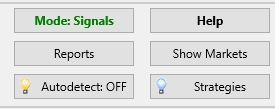
"Mode:" Button
Clicking the Mode: button with the left mouse button allows you to toggle between two modes: Mode: Signals and Mode: Manual.
For manual trading, both Mode: Manual and Mode: Signals can be used — in either mode, you can place orders manually and buy or sell coins.
However, to run automated strategies, it is mandatory to have Mode: Signals enabled, as only in this mode are auto systems allowed to execute purchases. The strategy must also be activated, with buying permissions enabled (AutoBuy=YES) and autodetection turned on. In Mode: Manual, automatic strategies will only trigger detection signals without executing auto-buys — coins can only be bought manually.
If you're using a manual strategy and want to prevent active strategies from making purchases while you trade manually, there's no need to disable detections or change AutoBuy settings in strategies (from AutoBuy=YES to AutoBuy=NO) — simply enable Mode: Manual. In this case, detections will continue to work, but auto-buys will not be executed.
If you prefer a universal mode that allows both manual and strategy-based trading, it's recommended to use Mode: Signals, as it supports both manual operations and automated strategy execution.
"Help" Button
The Help button opens a separate Moonbot FAQ window containing questions and answers across a variety of topics:
-
General questions
-
Cost
-
Training
-
Bonus Programme
-
File System
-
Interface configuration
-
Strategy settings
-
MoonBot and Telegram
-
Control via Telegram
-
General errors
-
Log errors
-
Log entries
-
Statistics
-
Development and testing
-
Help.
You can search through the relevant sections or use the search bar for convenience.
This FAQ section is also available on the Moonbot website under the Questions section at 🔗 https://moon-bot.com/en/faq/.
Right-clicking the Help button opens an additional menu allowing you to reassign its function. The following options are available:
-
Help — Help button, opens the Moonbot FAQ window by default
-
Assets — Assets button, opens the combined Assets window showing coin balances and transfer options between spot and futures accounts (same as Menu → Assets)
-
Reports — Report button, opens the Reports window
-
Alerts — Alerts button, opens the Alerts window (same as Menu → Alerts).
"Reports" Button
The Reports button opens a separate window titled [Exchange Name] Report, for example, Binance Report, where your trade data is displayed in table format. This window shows reports on both closed trades and orders that have been placed but not yet closed.
“Show Markets" Button
The Show Markets button opens a separate MarketsTable window, which displays, in tabular form, the list of coins available in the selected trading pair. The table includes additional parameters for these coins, such as volumes, current prices, maximum order sizes, order book fill levels, 1-hour and 15-minute deltas (used to sort coins by volatility), as well as other values and indicators.
Autodetect Button
The Autodetect button displays the current autodetect status: Autodetect: ON or Autodetect: OFF. It enables (lamp is lit when ON) or disables (lamp is off when OFF) strategy autodetects. If autodetect is enabled, strategy detection will occur automatically. If it is disabled, no detection will be performed.
"Strategies" Button
Left-clicking Strategies opens a separate Strategies window, where you can add, delete, and activate the required strategies and their folders. Right-clicking Strategies opens a menu with the following options: Start Checked — launches the strategies that are checked in the Strategies window, Stop All — stops all strategies.
Note: More detailed information about the functionality of the Reports, Show Markets, and Strategies buttons is provided in their respective sections of this manual.