Moonbot Main Screen
Bottom Area with Service Information
At the very bottom of the main Moonbot terminal window is a line displaying service information.
Terminal Connection Status with the Exchange
In the far-left corner, you’ll see the connection status of the terminal to the exchange. Possible statuses:
-
Green label Connection: OK — means the terminal is successfully connected to the exchange and receiving all required data via API
-
Red label Connection Error — indicates issues with the terminal’s connection to the exchange. Possible reasons include: incorrect API key input, missing trading permissions, internet connection issues, antivirus blocking, or other computer-related problems.
If you're unable to resolve the issue yourself, contact our tech support group on Telegram 📢 https://t.me/MoonBotSettings.
“Traffic Light” Indicator
The circle, or “Traffic Light”, indicates the quality of the terminal’s connection to the exchange. The color shows the current status:
-
Green — everything is working correctly
-
Orange — indicates connection issues or significant delays.
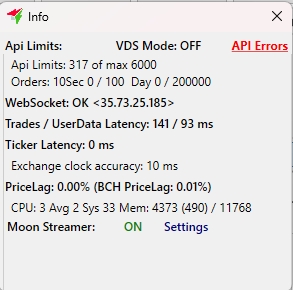
Clicking the “Traffic Ligh”opens a small info window with technical data. This includes:
-
VDS Mode shows if Virtual Dedicated Server mode is ON or OFF. When running locally, VDS should be OFF; when running on a remote server, it should be ON
-
Api Limits displays API limits for your current exchange connection. Spot and futures trading may have different limits. Shows current usage and maximum allowed values within a time interval. Exceeding these limits may lead to a ban. Use this info to control the load
-
WebSocket — connection status: OK or Offline
-
Traders / UserData Latency, Ticker Latency, PriceLag latency indicators and load metrics, including CPU, system load, and memory usage — helpful for evaluating performance and connection quality
-
MoonStreamer At the bottom of the info window, the MoonStreamer status is shown — ON or OFF. Click Settings to configure.
MoonStreamer is a separate server located in Tokyo that sends live trades via UDP. If your direct exchange connection is unstable, connecting to MoonStreamer can restore real-time chart updates. This service acts as a backup data feed for your Moonbot terminal. Note: MoonStreamer is most useful when trading from a local computer. On a VDS, it provides little to no advantage. It’s also important to note that MoonStreamer is an additional paid module, which can be activated using Moon Credits in the corresponding window.
Ping
The info window shows the ping value — the response time from your computer to the exchange. The lower this value, the faster the Moonbot terminal can place orders, buy, and sell coins.
For local computers, acceptable ping values range from 200 to 500 ms. On remote servers (VDS), ping is usually between 10 and 30 ms, which makes them more suitable for automated trading. That’s why the Moonbot terminal is often hosted on remote servers for autotrading, while local machines are used for manual trading.
After the ping value, a second number appears after a slash — this shows the order placement delay in milliseconds. As with ping, the lower this value, the better.
The Moonbot terminal for Binance includes an option to select different connection methods: Original, Method 2, Method 3, Method 4. The user can switch between these methods and observe which one provides the lowest ping and order delay values. This helps determine the optimal connection method for achieving the fastest terminal performance.
Labels "O:" and "E:"
-
O: displays the total number of all active Buy and Sell orders in the terminal.
-
E: displays the current number of errors in the terminal, and after the slash — the maximum allowed number of errors.
API Load
API Load — this is the API usage load indicator. When opening new charts or placing orders, the bar gradually fills up. The green color of the indicator means that the load is low and within the acceptable range. If the indicator turns red, a sound alert is triggered, warning of high or critical API usage.
If the indicator stays in the red zone for an extended period, the exchange may issue a temporary ban, restricting API access from the current IP address. During the ban, trading will be unavailable. In such cases, it’s necessary to analyze what caused the increased load and take steps to reduce it. For example:
-
Close some open charts
-
Check if too many strategies are running at once. Each strategy can generate a large number of orders. If so, disable some strategies or adjust their parameters to reduce order frequency and volume.
If the exchange detects that your IP address is sending an excessive number of requests exceeding API limits, it will impose a ban. The ban typically starts with a short-term restriction lasting a few minutes and is removed automatically. However, if the overload continues, the exchange may increase the ban duration.
⚠️ Warning! Always monitor this indicator and avoid overloading the API. This helps prevent terminal malfunctions and extended exchange bans.
Clock Accuracy
Clock accuracy should be within ±100 milliseconds, as it affects the synchronization of trade data with real time. If the accuracy value is small, everything is fine. However, if you see a large value (e.g., over 1000 milliseconds) highlighted in red, or a message saying Clock accuracy: BAD, this means the trading chart may become misaligned and the trade display could be incorrect.
To improve clock accuracy, it is recommended to run the terminal as administrator to increase its execution priority. If time accuracy issues occur, you can manually synchronize the system clock or install a time synchronization utility that will perform this task regularly and automatically.
CPU Load
The CPU parameter shows the percentage of processor usage. If this value exceeds 90%, it indicates a critical load, which may lead to freezes in the terminal or even a complete failure of its operation. To reduce processor load, it is recommended to close the terminal, restart the computer, and disable unnecessary services or background applications that interfere with the terminal's normal operation. High load may also occur if you attempt to run multiple copies of Moonbot simultaneously on a low-performance computer.
Telegram
This line displays whether the terminal is currently connected to any Telegram channels. If there are no messages, the indicator is red, meaning the terminal is not receiving data from Telegram. If the name of the Telegram channel from which the terminal received the last message is shown, the indicator is green, indicating that the terminal is monitoring that Telegram channel and successfully receiving messages from it.
More detailed information about Telegram connections, remote terminal control, and receiving statistics via Telegram will be provided in a separate section of this manual. Additionally, you can watch a webinar from Moon Academy at this link: 🔗 https://www.youtube.com/watch?v=1uO-WAJyEzU&t=1455s&ab_channel=MoonAcademy
Corporate Email for Contacting Moonbot Developers
Next is the corporate email address for contacting the developers of the Moonbot terminal: info@moon-bot.com.
Terminal Version Type
The Moonbot terminal comes in two types, and this information is shown in the bottom-right corner of the main window:
-
FREE version (displayed in red) — the free version of the terminal
-
PRO version (displayed in green) — the paid PRO version.
The FREE version has significant functionality limitations and is intended for basic familiarization with the terminal. The PRO version has no restrictions and can be activated in Settings → PRO.
Moon Credits Window
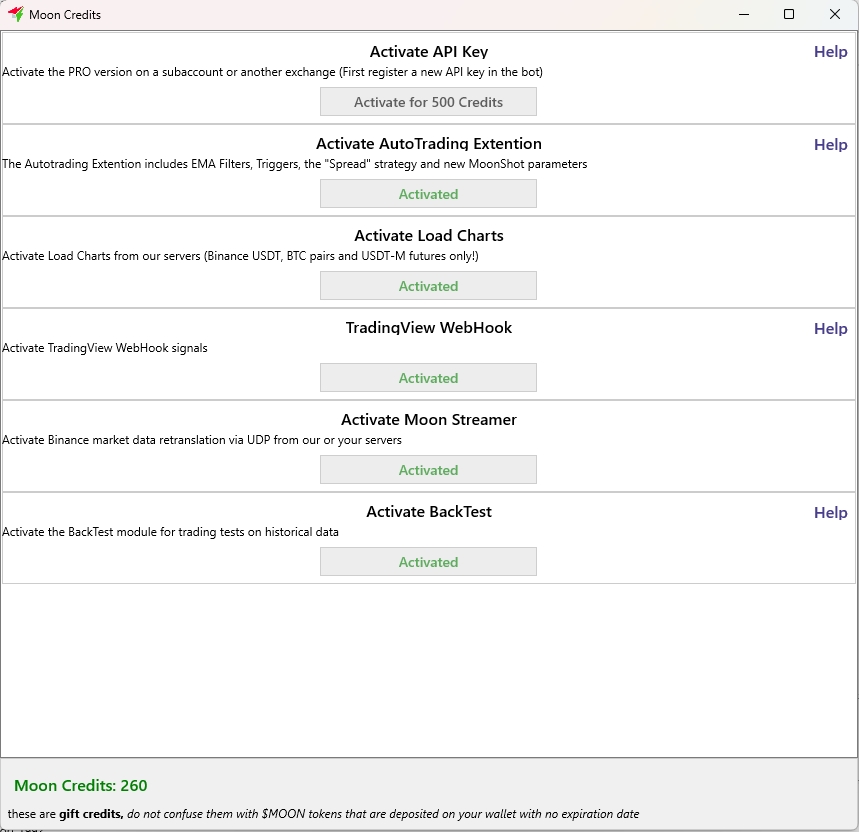
Clicking on the terminal version label (FREE version or PRO version) opens the Moon Credits window, which lists additional paid modules that can be activated with MoonCredits to expand the terminal’s functionality.
For example, you can activate trading on additional exchange subaccounts, which help distribute API load and allow trading on different markets (spot or futures) with separate balances. This makes it possible to minimize risks by spreading funds across subaccounts instead of using the entire deposit on a single account.
Activation of each subaccount costs 400 MoonCredits. More details on subaccount activation are available here: 🔗 https://moon-bot.com/en/subaccount-activation/
The Moon Creditswindow includes the following sections:
-
Activate AutoTrading Extension activates the auto-trading module, which provides access to features such as the Spread strategy, EMA strategy, EMA formulas in strategies, triggers, coin sessions, and additional parameters for the MoonShot strategy. More about this module:🔗 https://moon-bot.com/en/pro-version/extension-pack/
-
Activate Chart Loading A service for loading missing chart data from our servers located on VDS (Japan). Without this module, the exchange provides only the latest 1000 trades, which limits analysis. When activated, full multi-day chart data is downloaded from our servers. Supported pairs: BTC, USDT, BUSD for spot, and USDT-M for futures.
-
TradingView WebHook A module for integrating the terminal with TradingView via WebHooks, which send POST requests to a URL when an alert is triggered. The URL is configured in the Moonbot terminal under Settings → AutoBuy. More details:
🔗 https://moon-bot.com/en/immediate-reciept-of-commands-from-tradingview-using-webhooks/ -
Activate Gate.io API Key: activates the PRO version for trading on the Gate.io exchange
-
Activate MoonStreamer a module for fast trade data transfer from our VDS servers in Tokyo to your local PC via UDP, replacing the standard Binance WebSocket. Recommended for manual trading. More details: 🔗 https://moon-bot.com/en/moonstream/
-
Activate Bybit API Key: activates the PRO version for trading on the Bybit exchange
-
Activate MoonBonus unlocks additional terminal features, including the MoonHook strategy, Chart Monitoring in Separate Windows, Price Emulation with the Pencil Tool mode and automatic BNB purchase for fee payments
-
Activate HTX API Key: activates the PRO version for trading on the HTX exchange.
MoonCredits Cost and Balance
The cost of activating each module is shown on the buttons in the Moon Credits window.
Your MoonCredits balance is displayed in the lower-left corner of this window.
Exchange rate: 1 MoonCredit = 1 USDT. You can request information on how to purchase MoonCredits by contacting the administrators in the official Telegram group: 📢 https://t.me/MoonBotSettings.