“Settings → Advanced” Tab
System
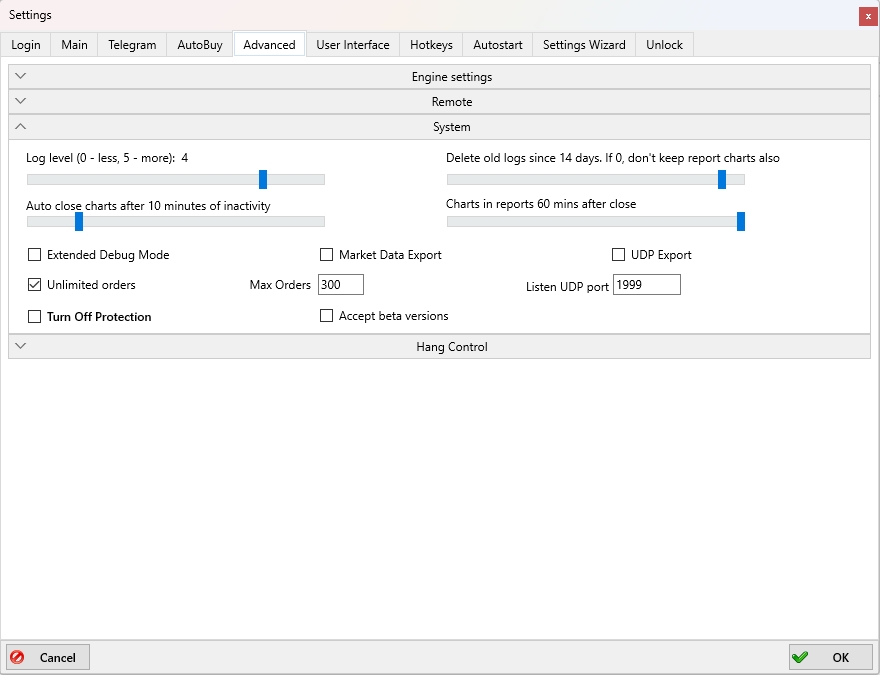
Log level (0 - less, 5 - more): N
The Log level (0 - less, 5 - more): N slider lets you choose one of five detail N levels for technical logs. Default: Level 3 is recommended. At Level 5, the log contains maximum details, including timestamps with fractional seconds.
Auto close charts after N minutes of inactivity
The Auto close charts after N minutes of inactivity slider determines after how many minutes unused charts will be automatically closed. The adjustment range is from 0 to 59 minutes or in the extreme position Auto close charts: NEVER. The faster the charts are closed, the lower the load on API keys.
Delete old logs since N days. If 0, don't keep report charts also
The slider Delete old logs since N days. If 0, don't keep report charts also allows you to select the number of days after which old logs will be deleted. The adjustment range is from 0 to 14 days. By default, the slider is set to 7 days. If it is set in the leftmost position to the value 0, the charts of deals will not be recorded. If it is set in the rightmost position to the value Deletе old logs: NEVER, the logs will not be deleted and in this case it will be necessary to control the filling of the disc space by yourself.
Charts in reports N mins after close
The Charts in report for N min after close slider defines how long the chart will continue to be recorded after a trade has ended. Adjustment range from 0 to 60 days. Recording the chart after a trade is useful for further analysis of the situation after exiting the trade. Until the specified time passes, the chart will continue to be recorded and after the end of recording will be saved in the logs folder in a file with the extension .bin.
Extended Debug Mode
When this checkbox is enabled, additional parameter information from strategies will be displayed at the top of coin charts.
Market Data Export
When this checkbox is enabled, Moonbot is allowed to export the market data stream to a .txt file for further analysis.
UDP Export
When this checkbox is enabled, Moonbot is allowed to export data streams to a local UDP port. More info: 🔗https://moon-bot.com/ru/udp-export/.
Listen UDP port
This field allows you to enter the UDP port number that Moonbot will listen on to receive data. If you are running multiple Moonbot terminals, each instance must have a unique port number specified in this field.
Unlimited orders
If the Unlimited orders checkbox is not enabled, the Max Orders field is limited to 30. If this checkbox is enabled, the limit increases to 1000 orders.
For the FREE version, the limit is 40 orders, regardless of the checkbox state. In the PRO version, the maximum is 1000 orders.
Keep in mind: a large number of orders and frequent rearrangements — especially with the MoonShot strategy — can lead to a ban from the exchange due to exceeding limits.
Turn Off Protection
When this checkbox is enabled, it disables the built-in protection against exceeding API and CPU limits.
⚠️ We strongly recommend not enabling this option and not disabling the protection!