“Settings → Main” Tab
“Panic Sell” Block
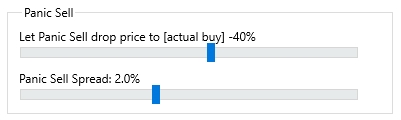
After buying a coin, the Moonbot terminal immediately places a sell order at a preset price: [actual buy price] + Y%. If you notice that the sell price is too high or the pump/price growth is not going as expected, you can activate the Panic Sell function. The terminal will then automatically move the sell order downward, trying to sell at the best possible price — your order will always be placed at the top of the sell queue.
This block contains two sliders:
-
Let Panic Sell drop price to [actual buy] ± X% — a slider with a range from -99% to +5%, which defines the percentage level from the buy price to which the terminal is allowed to lower the Sell order when Panic Sell is pressed in the right-hand control panel of the main window. The recommended setting is around -40% to give Panic Sell maximum flexibility to close the position during a rapid price drop.
Example:
You entered a long position, and a sell order is placed at +30% above the buy price. The Let Panic Sell drop price to [actual buy] ± X% value is set to -5% negative value. If the price stops rising and begins to drop quickly, pressing Panic Sell will cause the terminal to instantly move your sell order from +30% to the current lowest ASK price (red zone of the Order Book ASK).
If there are no buyers at that price and the price continues to fall, the sell order will automatically move again every 2 seconds to the new lowest ASK price, continuing this process until it reaches the -5% threshold. After that, the sell order will remain at that level and will not go any lower.
If the price drops rapidly and by more than -5%, you’ll need to manually disable Panic Sell by unchecking the Panic Sell button and manually close the position by dragging the sell order into the Order Book BID (green zone).
You can also set a positive value in the Panic Sell drop price to [actual buy] ± X% parameter. For example, setting it to +1% will instruct the terminal to place the sell order no lower than +1% above the buy price.
-
Panic Sell Spread: X% — a slider ranging from 0% to +5%, which sets the percentage offset from the current market ASK price by which the Moonbot terminal lowers the sell price when Panic Sell is activated. This helps execute the order faster, possibly matching the BID price or simply staying ahead of other market participants.
Example:
Using the same example above and setting Panic Sell Spread to 0.3%, when Panic Sell is activated, the terminal will move the sell order 0.3% below the current lowest ASK. This increases the chance of finding a buyer more quickly. If the spread is narrow, the order will execute into the Order Book BID. If the spread is wide, the sell order may sit in between the BID and ASK books, depending on current market conditions and the coin in question. To close the position as quickly as possible without waiting for buyers in the spread, you can increase Panic Sell Spread, e.g., to 1.0%, making it more likely your order will immediately hit the green zone and sell at market (best BID price).
The sell order is repositioned every 2 seconds when Panic Sell is active and continues until the position is closed or the price reaches the limit defined by the Let Panic Sell drop price to [actual buy] ± X% slider.
For coins with dense order books and low volatility, a Panic Sell Spread value of 0.2–0.5% is recommended. For coins with thin order books and high volatility, you may want to set the value higher, e.g., 0.6–2.0%, to get into the BID zone faster and close the position.
Additionally, consider the order size you're working with: large orders combined with high Panic Sell Spread values on thin books can cause slippage, where the order consumes multiple limit bids, creating a price spike on the chart.