Installing Moonbot on a Local Computer
Creating a Folder for the Moonbot Terminal
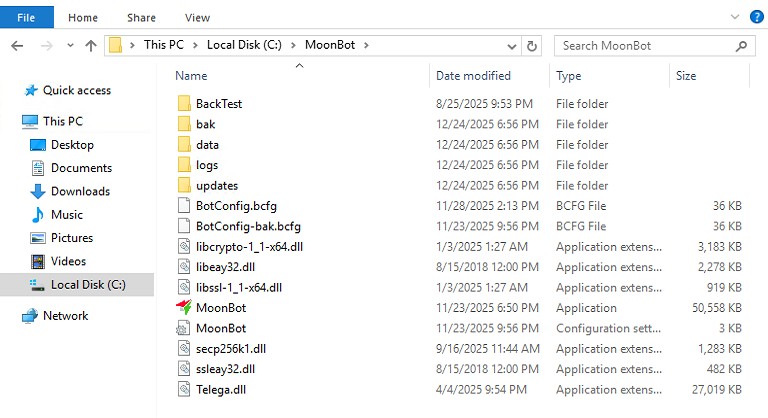
To install the terminal, create a folder, for example, C:\Moonbot, and extract the four initial filesfrom the ZIP archive downloaded from the website into this folder. Then, launch MoonBot.exe as an administrator. Upon the first launch, the terminal will prompt the user to read and accept the User Agreement, then open the interface of an unregistered terminal.
During the first launch, Moonbot will automatically create all the necessary system files and folders required for its operation. Some of these files will remain empty until API keys are registered and the terminal begins functioning.
⚠ Attention! There are several important recommendations regarding the installation and folder placement of Moonbot:
-
The MoonBot.exe executable file should not be launched directly from the archive. The files must first be extracted into a separate folder before starting the terminal.
-
The terminal should not be extracted to the desktop, Downloads folder, or temporary and system directories such as Windows, Program Files, Temp, Users, and other similar locations
-
Do not use Russian letters in folder names containing terminal files, and try to avoid spaces in the file path
-
The folder containing the terminal should be placed on D or E drives if available. If only the system C drive is present, it is recommended to create a separate folder in the root directory, such as C:\Moonbot.
Installing the terminal in an unrecommended folder may lead to incorrect operation. For example, Windows might restrict Moonbot's access to writing files, preventing it from saving parameter changes in the Settings tab, recording logs, copying, and saving trading strategies.
Additional information
For Moonbot to operate correctly, the computer must meet the following minimum system requirements:
The operating system must be Windows 7 (64-bit) or later / Windows Server 2012 (64-bit) or later. If using Windows 7 or Windows Server 2012, all the latest Windows updates must be installed! The terminal will not work on 32-bit operating systems.
When using a VDS (Virtual Dedicated Server), the server should have at least:
-
CPU: 2 vCores (2 processor cores)
-
RAM: 2 GB
Moonbot does not require installation into the Windows system, as it is a portable application. This means that it can be stored and moved to any location on the computer (except for system folders), launched from a USB drive, copied to other devices, and continued from where the trading session was last closed.
The PRO version of Moonbot can be launched in an unlimited number of instances simultaneously, while the FREE version can only be run as a single instance on one computer.
It is also useful to know which folders and files are essential for Moonbot’s operation:
-
BotConfig.bcfg file contains the main terminal settings, including encrypted API keys, profile parameters, slider and checkbox positions, and the selected theme (light or dark).
-
MoonBot.ini file stores color theme settings, including background color, grid lines, trade display preferences, Order Book BID and ASK colors, and additional parameters for strategy optimization, recording formats, and the number of opened charts.
-
updates folder contains a text file with the current version number and downloaded archives for Moonbot updates.
-
logs folder records all terminal activity:
-
Files without the ADD prefix (YYYY-MM-DD) contain logs of all actions within the terminal, such as start/stop events, strategy activation, order placements, API errors, stop-loss tracking, and other system events.
-
Files with the ADD prefix (YYYY-MM-DD) contain logs of all messages received via Telegram, allowing verification of their processing.
-
Pump files (with the trading pair specified and the .bin extension) contain trade records in the Moonbot terminal, which can be accessed through the reports table by clicking the coin name in the report row to review trade details. The duration of recorded trade history can be adjusted in the terminal settings.
-
The data folder is one of the most important folders, containing key files:
-
Binance.db (example file for Binance exchange) stores reports of all trades (open, closed, deleted). These records appear when the Reports button is clicked. To clear all reports in Moonbot, close the terminal and delete this file. When restarted, the terminal will create a new blank file, resetting the reports table.
-
BinanceBTCOrders.backup (example file for Binance exchange) contains all placed orders on the chart (BUY, SELL, PENDING). Backup copies BinanceBTCOrders.backup2 and BinanceBTCOrders.backup3 ensure data recovery in case of corruption. If all three files are deleted while the terminal is closed, Moonbot will recreate them empty on the next launch, removing all orders from the chart
-
Binance-BTC-strat.txt (example file for Binance) stores strategies for BTC pairs. Switching to another pair (e.g., USDT) will create a new blank Binance-USDT-strat.txt file, where strategies for that pair will be recorded.
To transfer strategies between pairs, close the terminal, copy the file, and rename it to match the new trading pair. After restarting Moonbot, verify strategy settings (such as filter volumes and order sizes), as an order for 1 BTC in a BTC strategy could be 1 USDT in a USDT strategy, requiring adjustments. -
BTC-MarketData.zip archive contains trade history and drawn chart lines. Deleting this file will erase trade history, and Moonbot will generate a new blank file BTC-MarketData.zip upon the next launch.
-
sounds.zip — archive with sound files used in the Moonbot terminal. It includes .wav audio files that the terminal uses for system notifications, alerts, and strategy sounds. You can add your own .wav files to this archive, and after restarting the terminal, they will become available for selection within Moonbot.
-
The CoinsTwitters.txt file contains links to Twitter accounts of altcoin developers listed on the exchange. Pressing the Twitter button in Moonbot automatically opens the corresponding Twitter page for the selected trading pair.
-
bak — folder containing archives of trade reports, strategies, as well as copies of the terminal’s system profiles created before updating to new versions.If any critical files in the data folder are accidentally deleted or corrupted, they can be restored from this folder.