Moonbot Main Screen
Main Control Area

"Start / Stop" Button
The Start / Stop button enables or disables order placement as well as coin buying and selling in the terminal, both manually and automatically. To allow trading actions in the terminal, click the green "Start" button. The terminal will then switch to active mode, and the button will display a red "Stop" message, indicating that the terminal can be stopped when needed. In normal operation mode, the button shows the red "Stop" message.
"Settings" Button
Clicking the Settings button opens a dedicated window with the main terminal settings. You'll see a series of tabs, each of which will be covered in detail in the following sections of this guide.
"Pairs: " Button
The Pairs: button displays the currently selected trading pair in the terminal. Clicking it opens a list of available trading pairs that can be used for trading in this terminal when connected to a specific exchange. The currently selected pair is marked with a check mark, and you can switch to another pair by clicking on it. When switching to a different pair, the terminal reloads and displays data corresponding to the selected pair.
Menu
The Menu button opens a list of additional settings:
-
Emulation mode
-
Assets
-
Order Size → Fixed / Floating
-
Sell Price → Fixed / Float
-
Setting buy price → Use 30-secs old ASK price / Use current ASK price
-
Interface settings
-
Manual Trading → Use Main Settings / Use Manual Strategy
-
Auto close charts
-
Trades History
-
Pump Helper
-
Reconnect Engine
-
Alerts
-
Reset Session
-
Reset Buttons
-
Reload charts
-
Orders History
-
Stream Server
-
Manage Triggers
-
Log Analyzer
-
News
-
Exit
MoonBonus Button
The MoonBonus button provides information about participation in the MoonBonus program.
Clicking this button opens the MoonBonus window with two tabs: MoonBonus and Vote.
The MoonBonus tab displays details about the MoonBonus program, including referral links, the contact person for the program, and a list of available bonuses:
-
Automatic commission cashback when trading on Binance and Bybit (up to 30% of all trades, depending on the exchange and your VIP level). For more details, check our Telegram group MoonBot Cafe 📢: https://t.me/MoonBotCandy
-
Huge discount on the PRO version of the Moonbot terminal with MoonScalper and Binance Futures modules (75% discount + 300 MoonCredits as a gift using the MoonBonus code). You will also have access to a free 2-week trial of the PRO version with MoonScalper and Binance Futures modules
-
Activation of the auto-purchase BNB option (exchange token) when trading futures on the USDT-M market
-
Activation of the unique MoonHook strategy
-
Activation of the price emulation tool on the chart using the Pencil drawing tool
-
Activation of the Chart Monitoring feature in separate windows (no limit on the number of charts).
The Vote tab contains information and polls regarding the integration of new exchanges into the Moonbot terminal.
The MoonBonus button can be hidden from the main control area of the Moonbot terminal. To do this, go to Settings → User Interface and check the option Hide MoonBonus button. To make the button visible again, simply uncheck this option.
Profile: Default
The Profile: Default message appears when selecting Menu → Manual Trading → Use Main Settings and indicates that the default terminal settings profile is currently loaded. Clicking on this message opens a menu that allows you to save the current profile or load a previously saved Moonbot terminal settings profile.
This functionality allows you to:
-
Customize different color schemes for the terminal
-
Adjust main parameters
-
Quickly switch between profiles that match your preferences.
All profile files have the .bcfg extension and are saved in the root directory of the Moonbot folder.
"EMULATION" Message
The EMULATION message indicates that Moonbot is running in emulator mode. In this mode:
-
Data about placed emulator orders is not sent to the exchange
-
Emulator orders do not use real funds for trading
-
Emulator orders are not merged or split
-
Emulation mode is designed for paper trading, as well as for use with auxiliary trigger orders and for pre-configuring strategies to test their logic before using them with real funds.
If the EMULATION message is not displayed, it means that Moonbot is running in full live trading mode with a real deposit, and buy/sell data is being sent to the exchange.
You can enable or disable emulator mode via Menu → Emulation mode.
Current Manual Strategy Message
When selecting Menu → Manual Trading → Use Manual Strategy, the message Profile: Default is replaced with the name of the selected manual strategy, and manual strategy buttons will appear if they were configured under Settings → Hotkeys → Manual strategies by enabling the checkboxes next to the Button fields.
Manual Strategy Buttons
In the main control area, you can enable the display of fixed manual strategy buttons and assign a specific manual strategy to each button by following these steps:
-
Open Settings → Hotkeys → Manual strategies
-
To the left of each Button label, check the desired number of boxes to display the required number of buttons
-
In the corresponding field below, set a hotkey combination to activate the needed button with the selected manual strategy.
-
Right-click the button, select the required manual strategy from the menu, and it will be linked to that button.
-
Repeat these steps for other buttons to set up quick access to frequently used manual strategies.
To switch between manual strategies, either left-click the desired button or use the previously assigned hotkey combination.
Signal Channels
When selecting Menu → Manual Trading → Use Main Settings, the far-right side of the main control area displays the Signal Channels: message followed by a list of Telegram channels monitored by this instance of Moonbot. You can configure the list of channels tracked by the terminal under Settings → Telegram.
Detailed instructions on configuring this tab, connecting to Telegram, and adding channels will be provided in the corresponding section of this manual.
New Version Notification and Terminal Update
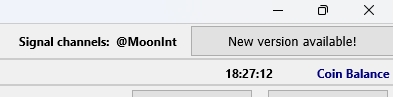
Moonbot is regularly updated, and when a new version is released, a special tab appears on the far-right side of the main control area with a message like: "New version 7.39 available!".
Manual Terminal Update
You can manually click on the version tab. Moonbot will then begin the update process: it will close, download the necessary update files, apply them, and restart with the new version.
Automatic Terminal Update
Moonbot can also be configured to update automatically. To enable this, go to the Settings → Autostart tab and check the option AutoUpdate the bot. In this case, the terminal will update itself as soon as a new version becomes available. You can also check the Postpone AutoUpdate with active sells option on the same tab. This prevents automatic updates while there are open Sell orders.
⚠️ Attention! Use auto-updating with caution. The update process may start automatically at an inconvenient time, such as during a sharp BTC price drop, when markets become highly volatile. In such situations, instead of promptly closing positions or launching necessary auto-strategies, you'll be forced to wait for the update and restart process to complete. Therefore, it's recommended to update Moonbot manually at a suitable moment.
After completing the update (whether manually or automatically), a browser window will automatically open with the version history page: 🔗 https://moon-bot.com/en/manual/versions-history/ . Here you can find information about new features and changes introduced in the latest release.