“Main window” Settings Area
“Main window” Settings Area Review
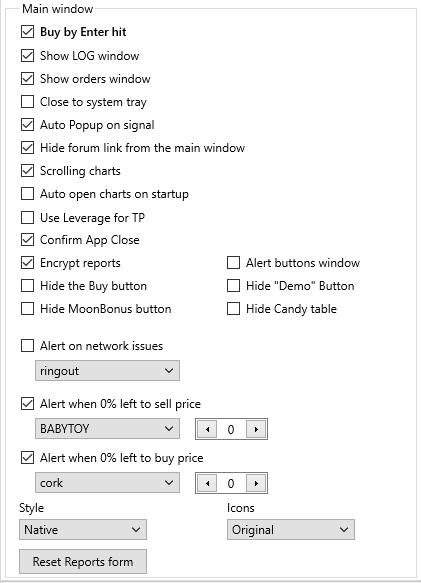
☐ Buy by Enter hit
When this checkbox is enabled, you can execute a purchase by pressing Enter after entering the coin name in the search field on the terminal’s main window.
☐ Show LOG window
When this checkbox is enabled, the log window will be displayed on the main screen below the coin charts.
☐ Show orders window
When this checkbox is enabled, the orders window will be displayed on the main screen below the coin charts.
☐ Close to system tray
When this checkbox is enabled, Moonbot will minimize to the Windows system tray when closed.
☐ Auto Popup on signal
When this checkbox is enabled, the Moonbot window will automatically expand upon receiving a signal.
☐ Hide forum link from the main window
When this checkbox is enabled, the field with the link to the Moonbot feedback forum 🔗https://bitcointalk.org/index.php?topic=2234198 will be hidden under the chart.
☐ Scrolling charts
When this checkbox is enabled, vertical scrolling with the mouse wheel will be available after opening a third or subsequent chart, instead of proportional chart compression.
☐ Auto open charts on startup
When this checkbox is enabled, all active charts will automatically open upon terminal launch. If there are many charts, this may cause a slight delay at startup.
☐ Use Leverage for TP
When this checkbox is enabled, leverage will be taken into account when calculating the TP slider and displaying order size in reports (this does not affect trading execution).
☐ Confirm App Close
When this checkbox is enabled, a confirmation prompt will appear before closing the terminal. Without this checkbox, Moonbot will close immediately.
☐ Encrypt reports
When this checkbox is enabled, the report file will be encrypted, preventing offline editing.
☐ Hide the Buy button
When this checkbox is enabled, the Buy button on the right control panel will be hidden.
☐ Hide MoonBonus button
When this checkbox is enabled, the MoonBonus button will be hidden.
☐ Alert buttons window
When this checkbox is enabled, a separate window with buttons will open upon detector activation. This window can be freely moved around the screen.
☐ Hide “Demo” Button
When this checkbox is enabled, the Demo Mode button will be hidden.
The Demo Mode button activates a simulation mode for testing the terminal’s features. In this mode, no real orders are sent to the exchange, and no real deposit is used. After testing, it is recommended to hide this button.
☐ Hide Candy table
When this checkbox is enabled, the Candy feature on the terminal's main screen will be hidden.
☐ Alert on network issues
When this checkbox is enabled, the selected sound below will play if internet connection problems are detected.
☐ Alert when X% left to sell price
When this checkbox is enabled, the selected sound below will play when the price approaches the Sell order within the specified percentage distance. The distance can be entered in the field to the right of the sound selection.
For example, if you enter 0%, the sound will play upon the actual sale. If you enter 1%, the sound will play when the price comes within 1% of the Sell order.
☐ Alert when X% left to buy price
When this checkbox is enabled, the selected sound below will play when the price approaches the Buy order within the specified percentage distance. The distance can be entered in the field to the right of the sound selection.
For example, if you enter 0%, the sound will play upon the actual purchase. If you enter 1%, the sound will play when the price comes within 1% of the Buy order.
Style
A menu for selecting various light or dark themes for the Moonbot terminal interface.
The currently available themes are:
-
Native (light theme)
-
Light (light theme)
-
Diamond (light theme)
-
Dark (dark theme)
-
Dark OldSchool (dark theme).
Select the desired theme and click OK — the theme will be applied immediately without restarting Moonbot.
If you spend long hours in front of the screen, we recommend using dark themes to reduce eye strain.
Icons
Selection of icon style in the Moonbot terminal:
-
Original — original colored icons
-
Mark B&&W — custom black-and-white icons.
Reset Reports form
The Reset Reports form button resets the report layout: column arrangement and all settings will be restored to default.