Settings Button
“Settings → Login” Tab
The Moonbot terminal interface supports three languages: Russian, English, and Spanish. To change the language, click the corresponding flag icon — the interface language will change automatically without needing to restart the terminal.
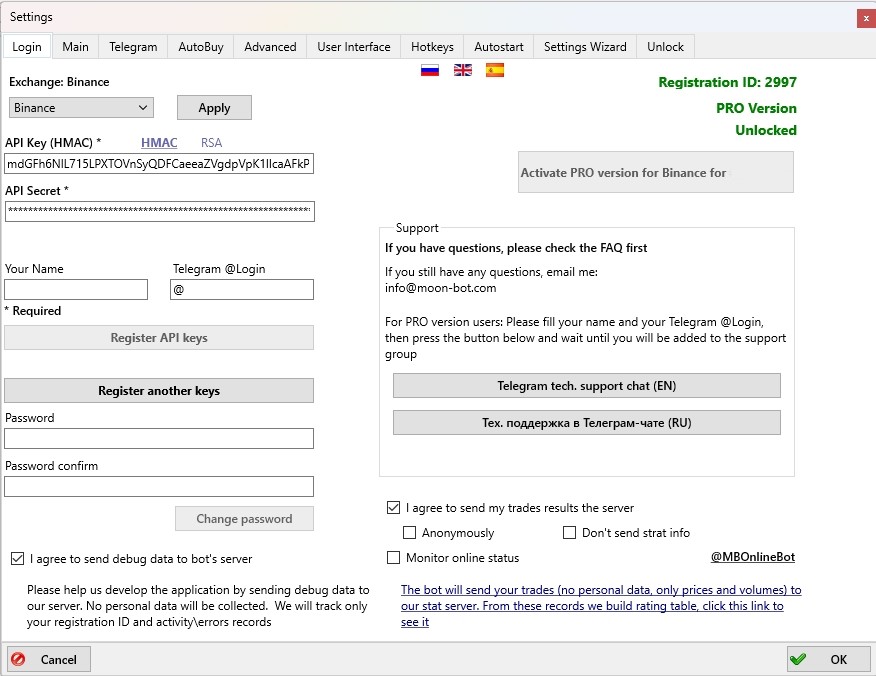
In the Exchange field, select the platform you want to connect the terminal to. Click the dropdown menu and choose the desired exchange from the list.
Moonbot supports the following connection options:
-
Bittrex (spot trading) — currently unavailable, as the exchange is closed
-
Binance (spot trading)
-
Binance Futures (futures trading)
-
HTX (spot trading)
-
Binance Quarterly (futures trading on quarterly contracts)
-
Bybit (spot trading)
-
Bybit Futures (futures trading)
-
Gate Spot (spot trading)
-
Gate Futures (futures trading).
After selecting the desired exchange, click the Apply button.
Next, enter your API Key and API Secret in the corresponding fields to connect Moonbot to your account on the selected exchange.
Connecting and Registering API Keys
* Instructions on obtaining API keys from the exchange are provided in the section on connecting the terminal.
After entering the API keys, click the Register API Keys button.
If, after this, the Settings → Login tab displays the message Enter correct API keys, and the bottom left corner shows a red message Connection: ERROR, the following issues might be the cause:
-
Incorrect API key copying (e.g., missing characters or an extra space copied)
-
API Key and Secret fields swapped by mistake
-
The terminal is blocked by antivirus software, preventing connection to the exchange
-
Data is not reaching the exchange due to VPN/Proxy settings, internet issues, router or ISP problems
-
The API key’s IP whitelist on the exchange doesn’t match the current IP address of your device.
You can also enter your name and Telegram username — this allows you to share coin names with other users in the @MoonInt chat and optionally send personalized statistics to the Moonbot server, which are displayed on the website 🔗https://stat.moon-bot.com/.
On the right, the Registration ID is displayed — this is your terminal’s unique ID and shows the version type: PRO version or FREE version.
Registering Other API Keys
If you're using the FREE version, simply enter the new API keys into the terminal, and it will automatically reconnect using them.
If you have the PRO version of Moonbot, you can register new keys from the same exchange account — they will also receive PRO status. Follow these steps:
-
Save the Registration ID and current API keys in a separate text file (if you haven’t already)
-
Copy the folder containing the main PRO terminal (used for spot trading) to a new location
-
Launch the terminal from this copy
-
Click Register another keys and enter the new API keys from the same exchange account
-
Click Register API keys. Once connected to the exchange, the terminal will become PRO with the new keys. You will be able to use both the old and the new keys.
Setting a Startup Password
You can set a password that will be required to launch the terminal. To do this, enter your chosen password in the Password and Password confirm fields, then click Change password.
To remove a previously set password, follow these steps:
-
Launch the terminal and enter the current password
-
Open the Settings → Login tab
-
In both the Password and Repeat password fields, enter a space and immediately delete it, leaving both fields empty
-
Click Change password.
After this, password protection will be disabled.
“Telegram tech. support chat (EN)” Button
Telegram tech. support chat (EN) — English-language technical support chat for PRO version users.
To join this Telegram chat:
-
Enter your Telegram username in the Moonbot terminal
-
Click the Telegram tech. support chat (EN) button
-
Wait for the chat invitation, which will be sent to you automatically.
⚠ Important! Before doing this, check your Telegram account settings: go to Settings → Privacy and Security → Groups & Channels and set the value to Everybody. This is necessary so that the admin team can send you an invitation. After joining the chat, you can restore your previous privacy settings.
“Тех. поддержка в Телеграм-чате (RU)” Button
PRO version users have access to a Russian-language support chat. To join it, enter your Telegram username in the corresponding field and click Join Chat. You will then receive an invitation.
⚠️ Important! Before doing this, check your Telegram account settings: go to Settings → Privacy → Groups & Channels and set it to Everybody. Otherwise, the admin team will not be able to send you an invite. After joining the chat, you can revert this setting.
“I agree to send debug data to bot’s server” Checkbox
Enabling the I agree to send debug data to bot’s server option helps contribute to the development of the Moonbot terminal by allowing debug information to be sent to our servers. No personal data is transmitted. The transmitted data includes only your registration ID, terminal activity logs, and software error reports.
“I agree to send my trades results the server” Checkbox
If the I agree to send my trades results the server option is enabled, trade data including personal information will be sent from the terminal to the statistics page 🔗https://stat.moon-bot.com (Trades tab):
-
UserId – Moonbot terminal ID from the Settings → Login tab
-
Telega – @Telegram username from the Settings → Login tab
-
Time – time of entering the trade
-
Coin – coin name
-
BuyPrice – coin buy price
-
SellPrice – coin sell price
-
OrderSize, $ – order size
-
Profit, $ – profit in USD
-
Profit, % – profit in percentage
-
Trade – manual or auto trading: manual / auto
-
Type – version type: pro / free.
“Anonymously” Checkbox
If the Anonymously option is enabled, the data will still be sent to the statistics page 🔗https://stat.moon-bot.com (Trades tab), but without personal identifiers in the UserId and Telega columns. These trades will be shown with anonymized values: UserId = 404 and Telega = @moon_bot_kurilka.
“Don’t send strat info” Checkbox
If the Don’t send strat info option is enabled, anonymized statistics about strategy types will not be sent to the server. If the checkbox is unchecked, the data will be transmitted and used to generate statistics by strategy type.
Daily and weekly strategy charts are displayed in real time on the Strategy Rating tab at 🔗 https://stat.moon-bot.com.
“Monitor online status” Checkbox
If the Monitor online status option is enabled, the terminal’s online status will be tracked via the Telegram service @MBOnlineBot. If the terminal goes offline from a specific IP address, you will receive a notification in Telegram. This helps you quickly identify the issue and restore terminal operation.
If you experience issues with API connection, terminal startup, or any other problems, you can always contact our technical support team in the Telegram channel 📢 https://t.me/MoonBotSettings.