“Settings → Main” Tab
“Stop Loss and Trailing Stop” Block
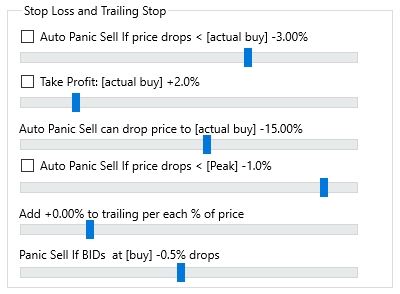
Auto Panic Sell If price drops < [actual buy] ± X%
If the Auto Panic Sell If price drops < [actual buy] ± X% checkbox is enabled, a stop-loss line will be placed on the coin’s chart upon manual purchase. If the checkbox is unchecked, no stop-loss line will be created and the position will open without a stop-loss.
The slider below lets you set the stop-loss level in a range from -20% to +1%. For example, setting it to -2% will place the stop-loss 2% below the buy price. Configure this value according to your preferred stop-loss style: some users prefer tight stops at -1%, while others opt for wider stops depending on coin volatility to avoid false triggers during brief dips followed by recovery.
⚠️ Note: The stop-loss line is displayed only within the Moonbot terminal — an actual stop order is not placed on the exchange. The closing mechanism works as follows: when the coin's price (Order Book ASK) crosses the stop-loss line in the terminal, an internal algorithm activates Panic Sell, triggering an emergency position closure at market price. If the terminal is closed, the stop-loss will not be performed.
Take Profit: [actual buy] +X%
If the Take Profit: [actual buy] +X% checkbox is enabled, the trailing stop line will not appear immediately, but only after the price reaches the set take profit level, which can be adjusted via the slider in a range from +0.5% to +10%.
If you leave this checkbox unchecked, the trailing stop line will appear on the chart immediately after the coin is purchased, based on the level you've selected.
This setting only works in combination with the Auto Panic Sell If price drops < [Peak] ± X% option. A detailed example of how trailing stops function is provided in the section below.
Auto Panic Sell can drop price to [actual buy] ± X%
This setting functions similarly to the AllowedDrop parameter used in strategies. It defines the maximum level to which the Sell order is allowed to fall when Panic Sell is triggered. The slider can be adjusted between -40% and +0.9%. The right limit of the slider depends on the value set for Auto Panic Sell If price drops < [actual buy] ± X%.
For example, in a long position with Auto Panic Sell can drop price to [actual buy] –10%, the Sell order will be gradually moved downward as Panic Sell executes, stopping only once it finds liquidity in the Order Book BID, but it will not go below -10%.
If the price drops too fast and the Sell order cannot close in time, it will stop at the -10% level and will not go any lower. At that point, you must wait for the price to return or manually close the position. For maximum sell-out efficiency even during sharp drops, it is recommended to set this value to -40%.
Auto Panic Sell If price drops < [Peak] –X%
If the Auto Panic Sell If price drops < [Peak] –X% checkbox is enabled, a trailing stop will be activated after purchasing the coin. This setting works together with the Take Profit [actual buy] +X% option. The trailing stop slider allows you to set the distance from the current price at which the stop will follow the coin, in a range from -10% to -0.1%.
Trailing stops are most effective when the coin is climbing steadily without sharp dips. Typically, the trailing feature is activated after the coin has grown by at least 1%. Setting a trailing stop below 1% is not recommended, as it may lead to frequent premature closures on minor price fluctuations.
Example 1
The Take Profit: [actual buy] +X% checkbox is not enabled. The Auto Panic Sell If price drops < [Peak] –X% checkbox is enabled, and the slider is set to -1%.
In this case, immediately after buying the coin, a trailing stop line will be placed on the chart at the –1% level from the purchase price.
If the price increases after the purchase, then for every +0.1% rise, the trailing stop line will also move up by +0.1%. For example, if the price rises by +1% from the purchase moment, the trailing stop line will move up from –1% to 0% relative to the purchase price.
If the price continues to rise and reaches +2%, the trailing stop line will also rise, maintaining a distance of -1% from the current price, and will now be positioned at +1% from the buy price.
When the price begins to fall and narrows the gap with the trailing stop line, the line stays in place. As soon as the ASK in the order book drops below the trailing stop line, Panic Sell is automatically triggered.
Example 2
The Take Profit [actual buy] +X% checkbox is enabled, and the slider is set to +0.5%. The Auto Panic Sell If price drops < [Peak] –X% checkbox is enabled, and the slider is set to -1%.
If the price goes up and reaches +1.5% (Take Profit: [actual buy] +0.5% + the absolute value of Auto Panic Sell If the price drops < [Peak] –1%), only then will the trailing stop line appear on the chart and be set at the +0.5% level from the purchase price.
As the price continues to rise by +0.1% increments, the trailing stop line will also move up by +0.1%. If the price reaches +2%, the trailing stop line will continue to move up, staying 1% below the current price, and will now be at +1% from the buy price.
In other words, the Take Profit: [actual buy] +X% value delays the appearance of the trailing stop line until a certain profit level is reached, effectively locking the position into break-even. As the price rises, the trailing stop keeps pushing upward, securing profits.
When the price drops and approaches the trailing stop line, the line stays in place. As soon as the ASK in the order book falls below the trailing stop line, Panic Sell is automatically triggered.
⚠️ Important! The trailing stop line cannot be moved manually with the mouse. Once the price reaches the level of the Sell order, the position is closed, and the trailing stop line disappears from the chart for that trade.
Add ±X% to trailing per each % of price
The Add ±X% to trailing per each % of price slider adjusts the distance between the trailing stop line and the current market price as the coin price increases. The slider range is from -0.5% to +2.0%.
If a negative value is set, the trailing stop line will reduce its distance from the current price as the price rises.
If the value is zero, the trailing stop line will maintain a fixed distance from the current price.
If a positive value is set, the trailing stop line will increase its distance from the current price as the price rises.
Example:
The Take Profit: [actual buy] +X% checkbox is not enabled. The Auto Panic Sell If price drops < [Peak] –X% checkbox is enabled, and the slider is set to -1%.
The Add ±X% to trailing per each % price slider is set to +0.1%.
In this case, after the price increases by +1%, the trailing stop line will no longer be 1% below the current price, but 1.1% below.
If the price rises by +10%, the trailing stop line will be 2% below the current market price.
This parameter is useful for highly volatile coins, where pullbacks grow proportionally with price increases, requiring the trailing stop to adapt its distance accordingly.
As a baseline setting, it is recommended to leave this value at 0.00% and then experiment based on your trading strategy and experience with the terminal.
⚠️ Note! This parameter in the main settings also affects trailing stop behavior in strategy settings.
Panic Sell If BIDs at [buy] ±X% drops
The Panic Sell If BIDs at [buy] ±X% drops slider, adjustable from -10% to +10%, sets the level in the BID book at which the volume will be monitored. If the volume at that level drops below the specified threshold, Panic Sell is triggered. This is essentially a volume stop-loss (VStop) feature.
First, place a Buy order or purchase the coin at market. Then click the Order button on the right control panel of the terminal's main window, or right-click the desired order and select Order from the menu. The Active Order window will open for order management. Click VStop to toggle it to ON. To the right, you can either keep the Global [Buy -X%] value set in the main settings or check Fixed and specify a custom coin price in the field to the right. In the Vol. < field, set the volume threshold (in quote currency) below which Panic Sell will be activated. For example, for a USDT pair, you might enter 100000 USDT.
Example:
VStop: ON Global [Buy -1.5%] Fixed unchecked Vol. < 100000 USDT
As soon as the coin is purchased, the terminal begins monitoring BID volumes. Based on the Global [Buy -1.5%] setting, it watches the BID side of the Order Book at -1.5% below your buy price.
When the BID volume at that level drops below 100000 USDT, Panic Sell is triggered.
“Auto Sell If partial buy > X%” or “Auto Sell: NEVER”
This setting defines how the terminal handles partially filled Buy orders:
-
If the slider is set all the way to the right (Auto Sell: NEVER), the Sell order will only be placed after the Buy order is completely filled
-
If you move the slider left, e.g., to Auto Sell If partial buy > 50%, then as soon as 50% of the Buy order is filled, the remaining portion is canceled and the purchased coins are immediately placed in a Sell order.
Example: you place a Buy order for $1000, and due to a sharp price movement, only $500 is filled. If the threshold is set to >50%, then a Sell order will be placed for the $500 filled, and the remaining $500 will return to your balance.
Recommended values:
-
For small orders — it is recommended to set the slider to Auto Sell: NEVER
-
For medium orders — it is recommended to set the slider to Auto Sell If partial buy > 60–70%
-
For large orders — it is recommended to set the slider to Auto Sell If partial buy > 25–40%.
If Auto Sell: NEVER is enabled and the order is only partially filled, you can manually click the Cancel Buy button in the terminal’s main window. After that the unfilled portion will be canceled, and the purchased coins will be placed in a Sell order.
Auto cancel BUY after XX Seconds/Minutes or NEVER
This setting is used to automatically cancel a Buy order if the price moves up and the order is not filled. If you set a time interval using the slider (from 2 to 29 seconds or from 1 to 30 minutes), the Buy order will be automatically canceled after the selected time has elapsed since it was placed. If the slider is set to the far right (NEVER), the Buy order can only be canceled manually.
This setting is applied when placing a Buy order using the Buy button or pressing Enter. If the Buy order is placed by clicking in the order book, this setting does not apply.
Cancel buys on sell fills
If the Cancel buys on sell fills checkbox is enabled, when you place multiple orders and one of the Buy orders gets filled and its Sell order is closed, all other pending Buy orders for that coin will be automatically canceled.
If the checkbox is unchecked, the remaining Buy orders will stay in the order book.
Fit sell order in best place in the order book
If the Fit sell order in best place in the order book checkbox is enabled, the terminal will be able to slightly adjust the Sell order price. Immediately after the Buy is filled, the terminal analyzes the Order Book ASK. If a large wall is detected near the target price, Moonbot will shift the Sell price downward, just below that wall. Conversely, if there are no walls near the target price, the terminal will move the price upward to the nearest safe level.
The adjustment range is ±20% from the originally set Sell price level (as a percentage). For example, if you set the Sell price at [+10%], the terminal will be able to adjust it within the range of +8% to +12%.
So this functionality helps sell faster by avoiding large walls in the Order Book. It is recommended to enable this option to increase the likelihood of a successful Sell order execution.