"Show Markets" Button and “MarketsTable" Window
"Show Markets" Button and “MarketsTable" Window
Clicking the Show Markets button opens a separate MarketsTable window, which displays a list of coins available for trading on the selected pair. This window also includes additional data columns and auxiliary settings.
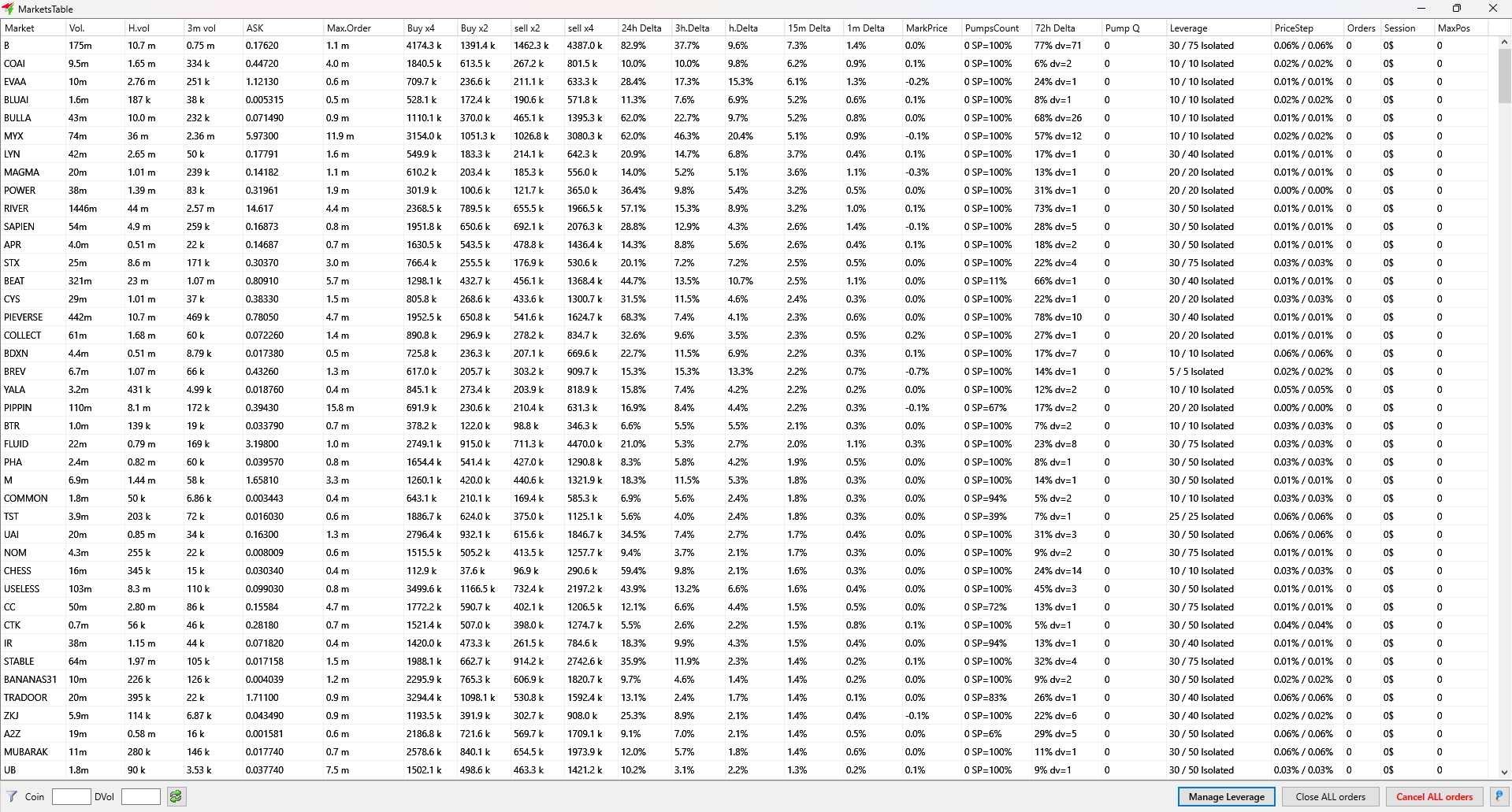
The MarketsTable contains the following columns:
-
Market – coin names for the selected trading pair
-
Vol. – daily trading volume; coins with lower daily volume are generally better suited for pumps
-
H.vol – hourly volume; if hourly volume significantly exceeds (daily volume) / 24, it indicates early accumulation, reducing the likelihood of a successful pump
-
1m vol – 1-minute trading volume
-
3m vol – 3-minute trading volume
-
5m vol – 5-minute trading volume
-
ASK – current coin price
-
H. High – hourly high
-
Max.Order – maximum allowable order size for the coin
-
Buy x4 – buy volume at 1/2 of the current price, representing support and BID Order Book ("green book") depth at that level
-
Buy x2 – buy volume at 1/4 of the current price, representing deeper support in the BID Order Book
-
Sell x2 – sell volume at 100% of the current price in the ASK Order Book ("red book"); lower volume here suggests higher price potential during a pump
-
Sell x4 – sell volume at 200% of the current price in the ASK Order Book; again, lower volumes suggest higher potential for upward movement
-
24h Delta – 24-hour price delta
-
3h Delta – 3-hour price delta
-
H.Delta – 1-hour price delta
-
15m Delta – 15-minute price delta
-
1m Delta – 1-minute price delta
-
Funding – funding rate (futures only)
-
MarkPrice – mark price
-
PumpsCount – consists of two values: number of pumps for the coin in the past week and the average chance to sell the coin at a higher price when bought at a random moment. Helps assess the risk of holding the coin and exiting the pump without loss on another day
-
72h channel – In the MarketsTable, it contains two values: average hourly price change over the past 3 days, and the ratio between the minimum and maximum daily volume over the last 10 days (excluding pumps). These help assess trend strength driven by fundamentals. For example, if a coin drops due to negative news, a pump is less likely to reverse the trend. Conversely, if the coin has recently started to rise, a pump may attract additional attention and the growth may continue
-
Pump Q – а notional value that reflects the coin's suitability for a pump
-
Leverage – leverage values set for coins (for futures markets). This column shows the current leverage, the maximum available leverage (separated by a slash), and the margin type: Cross or Isolated.
-
PriceStep – price step; first value is for the current pair, second is for BTC pair. Helps identify “square” coins (especially on BTC pairs), where price steps form square-shaped blocks in the Order Book
-
Orders – number of orders for each coin
-
Session – session value for the coins
-
MaxPos – maximum position values used for leverage control in futures markets. You can manually enter values here to be applied in the Config field (Manage Leverage button). By default, all values are set to zero.
Double-clicking any row in the MarketsTable will open the selected coin’s chart in the main Moonbot window.
Data in the MarketsTable is refreshed every 1 second in the latest versions of Moonbot.
To prevent freezes, the MarketsTable displays no more than 100 rows while inactive. As you scroll down, additional coins are automatically loaded.
You can click any column header to sort data in ascending or descending order.
The most frequently used columns are those with daily and hourly volume, as well as 1-hour and 15-minute deltas. You can sort by these columns to bring the highest values to the top, then click coin names to open 5–10 charts with the highest volumes or volatility. From there, you can manually decide whether to enter a trade, launch strategies or place pending orders.
To copy a group of coins from the MarketsTable, click the last coin in your selection, then right-click and choose Copy markets above selected. All coins from the selected one up to the top will be copied to the clipboard. You can then paste them into Notepad, Excel or use them as needed.
If you select the last coin in the list and repeat the same steps, all coins from the MarketsTable will be copied to the clipboard.
To add a group of coins from the top to the selected bottom one into the currently active chart window, right-click the selected (bottom) coin and choose Add markets above to Charts.
To reset the session value for a specific coin, right-click on it in the MarketsTable and select Reset session on market.
“Funnel” Button
At the bottom left is the “Funnel” button (Column Filters). Clicking it opens a window where you can enable or disable checkboxes next to the column names in the MarketsTable. If a checkbox is enabled, the column will be displayed; if it’s unchecked, the column will be hidden. In this same window, you can quickly check or uncheck all boxes using the Check All and Uncheck All buttons. Below that is the Hide BL checkbox, which hides coins that are listed in the global blacklist under Settings → Main → Black List. This prevents these coins from being displayed in the MarketsTable — even if they are highly volatile — and stops them from opening manually via the quick search filter field.
Below is the Export CSV button, which allows you to export data from the MarketsTable to a separate .csv file for further use in external applications.
An example use case: you can quickly filter out coins that are present in BTC pairs but missing in USDT pairs. To do this:
-
Click the Show Markets button and open the MarketsTable for the USDT pair
-
Hover over the last coin in the list, right-click its name and select Copy markets above selected
-
Copy the entire list of USDT-paired coins to clipboard
-
Open Moonbot terminal for the BTC pair and paste the list into the Black List field in Settings → Main
-
Click Show Markets, open the MarketsTable for the BTC pair, click the "Funnel" button, and check the Hide BL checkbox in the bottom left corner.
All coins from the USDT pair that match the BTC list will be hidden by the filter, and only coins exclusive to the BTC pair will remain in the table. These coins can be copied to clipboard for further use.
Coin field
To the right of the "Funnel" button is the Coin field, which serves as a filter for quick search of specific coins. You can enter only one coin name in this field.
DVol field
Further to the right is the DVol field — a filter by daily volume. Entering a value here will hide from the table all coins with a daily volume lower than the specified number.
Green arrows button
The button with green arrows refreshes the MarketsTable and simultaneously restores the sorting of coins by their listing date on the exchange.
"Manage Leverage" Button
The Manage Leverage button (available only in the Moonbot futures terminal) opens an additional menu for managing orders, margin type, leverage, and max position sizes.
Set Leverage to Button
To quickly set the same leverage for all coins, enter the desired value in the field to the left of the Set Leverage to button, e.g., enter "10", then click the button. The Moonbot terminal will then send requests to set 10x leverage on all coins. You can monitor the current / maxleverage values in the same MarketsTable under the Leverage column. The leverage change process is visible both in the log window and in the MarketsTable itself.
Set Max Leverage Button
To quickly apply maximum leverage to all coins, click the Set Max Leverage button. The Moonbot terminal will send requests to set the maximum available leverage on all coins. Current / max leverage values can be monitored in the Leverage column of the MarketsTable. The process of applying max leverage will be visible in both the log window and the MarketsTable.
“Make ALL Isolated” and “Make ALL Cross” Buttons
The Make ALL Isolated button sets isolated margin mode for all coins.
The Make ALL Cross button sets cross margin mode for all coins.
“Auto Isolated” Checkbox
Enabling the Auto Isolated checkbox allows Moonbot to automatically apply isolated margin mode to newly listed coins.
"Auto Cross” Checkbox
Enabling the Auto Cross checkbox allows Moonbot to automatically apply cross margin mode to newly listed coins.
“Auto Leverage N” Checkbox
Enabling the Auto Leverage N checkbox allows Moonbot to automatically maintain the specified leverage N for all coins. The desired leverage value N is set in the Set Leverage to field.
⚠️ Attention! Leverage setting priorities apply:
-
If max position control is enabled, it takes precedence
-
If max position control is not enabled, the fixed leverage defined in Auto Leverage is applied.
“Telegram report” Checkbox
Enabling the Telegram report checkbox allows Moonbot to send notifications to Telegram about leverage changes.
Auto Leverage Checkbox
Enabling the Auto Leverage checkbox allows Moonbot to automatically adjust leverage to meet the specified max order size. For example, if the max order can be placed at 20x leverage but the coin is set to 10x, the leverage will be automatically increased to 20x once this checkbox is enabled.
Allow leverage Up Checkbox
Enabling the Allow leverage Up checkbox allows Moonbot to automatically increase leverage if a required limit can be reached with higher leverage. This check is performed once per hour.
“Config:” Field
The Config: field (configuration string) is used to specify desired position limits. Based on these limits, the terminal will automatically adjust the maximum possible leverage for each coin.
The configuration string format is as follows:
(number) (list of coins separated by commas or spaces, or the keyword "def").
The keyword def applies the limit to all markets not explicitly listed before it in the string. A value of 0 means leverage control is disabled.
Examples:
-
10k def 30k BTC ETH (set a $30,000 limit for BTC and ETH coins, and $10,000 for all other coins)
-
0 def 5k TRX LRC 10k ADA (set a $10,000 limit for ADA, $5,000 for the TRX and LRC coins, and no leverage control for all other coins).
After filling in the Config field and enabling the related checkboxes, click the Apply button to apply the settings.
Another example of how this functionality works: suppose you want Moonbot on Binance to automatically reduce leverage from 50x to 20x if the exchange lowers it, and then automatically raise it back to 75x if the exchange increases it again; additionally, you want the terminal to always use the maximum possible leverage on all coins.
To achieve this in the Moonbot terminal:
-
Go to Settings → Advanced → Engine settings and check the Auto Leverage box (automatically adjust leverage down to 5x if the position limit is exceeded).
-
Then click the Show Markets button and click on Manage Leverage. Next, enable the checkbox Auto Leverage (automatically adjust leverage to match the maximum allowed order size), and enable Allow Leverage Up (increase leverage if the required limit can be reached with a higher leverage). In the Config: field, enter something like 100 def, which will be enough to always use the maximum leverage for all coins. Then click Apply. The terminal will immediately send a request to the exchange to raise leverage to the maximum for all coins, and it will continue to auto-adjust leverage when the exchange lowers or raises it.
You can also change values in the Config: field manually by editing the MaxPos column for specific coins or by using the Telegram command AutoLevConfig.
PIN Button
To keep the MarketsTable window always on top of all other windows, click the (blue) "PIN" button. Clicking it again disables the "always on top" mode for the MarketsTable window.
Close ALL orders
The Close ALL orders button will, after a confirmation, close all active Sell orders by setting a V-STOP at the [buy +1%] level and will trigger a Panic Sell for these orders.
Cancel ALL orders
The Cancel ALL orders button on the spot market cancels all Buy orders on your exchange account, even if they were placed via other terminals. On the futures market, this button cancels all position-closing orders, even if they were not placed through Moonbot.