“Settings → Telegram” Tab
“Settings → Telegram” Tab Overview
This tab is used to connect the MoonBot terminal to the standard or alternative Telegram client and configure the channels from which the terminal can receive signals.
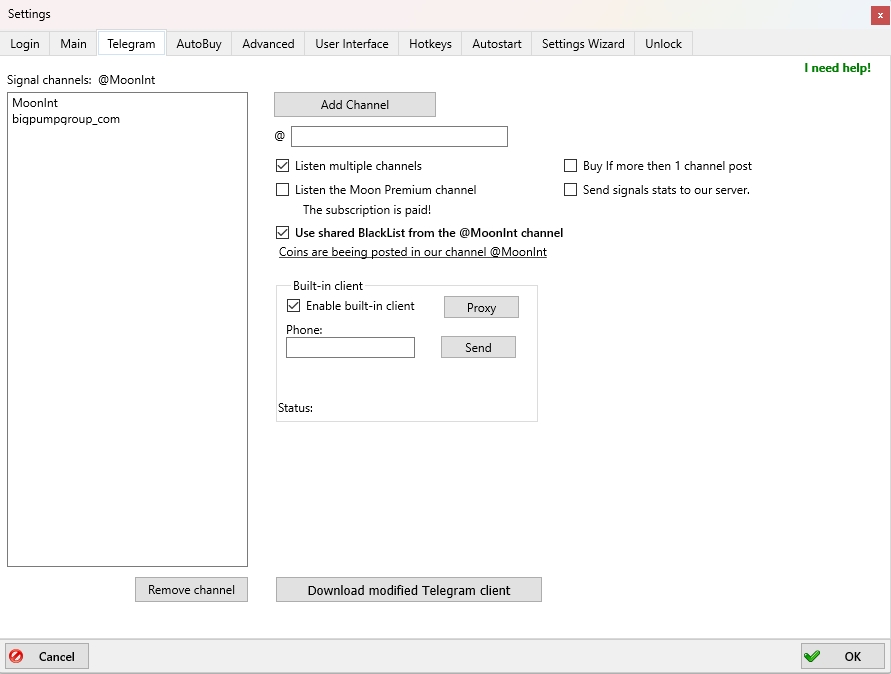
You can connect the MoonBot terminal to Telegram in two ways:
-
Use an alternative Telegram client. To do this, click the Download modified Telegram client button and log into your account. After that, the button will change to Run alternative Telegram, which you should then click.
If the alternative Telegram client is running — whether launched from the terminal or manually via the UTelegram.exe file in the terminal folder — it will begin forwarding all received messages to the terminal. The status bar at the bottom of the main terminal window will display the name of the Telegram channel where the terminal detected the last message, along with the delay (in seconds) between the message being sent and received. To correctly calculate the delay, ensure your computer has accurate local time. The clock accuracy (in milliseconds) is also shown in the terminal’s status bar. Upon startup, the terminal attempts to sync the clock, but in Windows 8 and newer, applications without admin rights cannot access system time. Therefore, it is recommended to launch the terminal with administrator rights and to configure internet time sync in your system. -
Use the built-in Telegram client. In the Built-in client section, check the Enable built-in client box. A phone number field will appear. Enter the number linked to your Telegram account, click Send, then enter the confirmation code and password (if set). If successful, the Status field will show OK, indicating a successful connection.
You can also work through a proxy server: click the Proxy button and select the desired option from the menu: Socks5, MTProxy, or Built-in MTProxy. Configure the settings as needed and click Apply. If the terminal cannot connect to Telegram without a proxy, it will automatically enable the built-in MTProxy. You can later switch to your own proxy server.
The built-in client can run simultaneously with the alternative one, allowing you to receive signals from two Telegram accounts.
You can enable/disable the built-in client via the settings checkbox or from the tray icon menu.
Once connected to Telegram, you will be able to receive buy and sell signals from your channels, trade data, chart screenshots, and also send remote control commands to the terminal. Read more about remote control here: 🔗 https://moon-bot.com/ru/manual/history/ .
The Add Channel button and the channel name input field allow you to manually create a list of channels you plan to work with. To add a channel to the list, enter its name in the field and click Add Channel. The channel must also be added to your Telegram account.
Write the channel name without the @ symbol and without the https://t.me prefix.
For example, to add the channel https://t.me/MoonInt, enter MoonInt into the field and click Add channel. The channel name will then appear in the list on the left.
The Remove channel button allows you to delete a channel from the list.
If you want to monitor only one channel, left-click on it in the list. The Signal channels: line will then display its name. For example, clicking the MoonInt channel will display: Signal channels: @MoonInt. This line is shown both on the Settings → Telegram tab and in the top-right corner of the main terminal window.
If the Listen multiple channels box is checked, you can monitor several channels simultaneously. Hold CTRL and left-click the desired channels in the list to select them.
If the Buy if more then 1 channel post option is checked, the terminal will only buy coins if a signal for the same coin is received from two different Telegram channels.
If the Listen the Moon Premium channel box is checked, you will be able to receive paid subscription signals from the official MoonBot aggregator channel Moon Premium, which aggregates signals from various paid sources.
⚠️ Attention! By subscribing to the paid Moon Premium channel, you agree to the transmission of statistical data (signal date, coin, price at time of signal) to our server.
More on configuring the Moon Premium channel: 🔗 https://moon-bot.com/ru/moon-channel/.
The Send signal stats to our server. checkbox is also related to the Moon Premium channel. If enabled, the terminal will send the channel name, coin, and signal time to the server. This data helps build channel rankings. Thanks to aggregate statistics, the Moon Premium channel tracks which sources post signals first and which copy them after a trade has already been executed.
If the Use shared BlackList from @MoonInt channel box is checked, the terminal will use a live blacklist based on user-submitted signals to the Telegram channel 📢 https://t.me/MoonInt.
If you’ve configured MoonBot to connect with Telegram, the terminal can automatically read signals to temporarily blacklist specific coins. These signals are submitted by other users in the 📢 @MoonInt group channel. To allow your terminal to read them, you must be subscribed to the channel.
How it works: experienced users (with a rating of 4 or at least 4 votes) who detect risky coins can click Share in the right-hand panel of the terminal and open the Share Market window to submit a signal to 📢 @MoonInt for temporary blacklisting. Each signal includes a duration in minutes and a risk level from 1 to 3:
-
Pips – risk level for trades up to 2%
-
Deep – risk even on deep buy prices of 5–10%
-
Deadly – extremely dangerous (delisting, scam, potential deposit loss).
If you’ve enabled Use shared BlackList from @MoonInt channel, the terminal will read and apply these signals to all strategies. In each strategy, you can set the minimum risk level that will block the strategy (on the Filters tab using the MoonIntRiskLevel parameter). Default value is 2 (the strategy won’t operate if a Deep level risk is signaled). If you set MoonIntRiskLevel = 4 or higher, the strategy will ignore all blacklist signals, since the highest current risk level is 3.
Read more here: 🔗https://moon-bot.com/ru/manual/telegram-connect/ .
Example setup for @MoonInt: 🔗https://moon-bot.com/ru/73-social-trading/.
All received Telegram messages are saved in the logs folder in files prefixed with ADD, such as: LOG_ADD_YYYY-MM-DD.log, for example: LOG_ADD_2025-04-28.log. These logs let you verify signal receipt, signal syntax, interpretation by the terminal, any errors, and how the terminal’s strategies processed them.